
Optimize Gifting on VinesOS
Make gift shopping easier for your customers with two simple tools: product tags and holiday bundles. Tags highlight specific wines, and bundles package products together for gifting. Here's how to set up both.
Highlight Wines with Product Tags
Tags help your wines stand out on your shop page, your POS, or both.
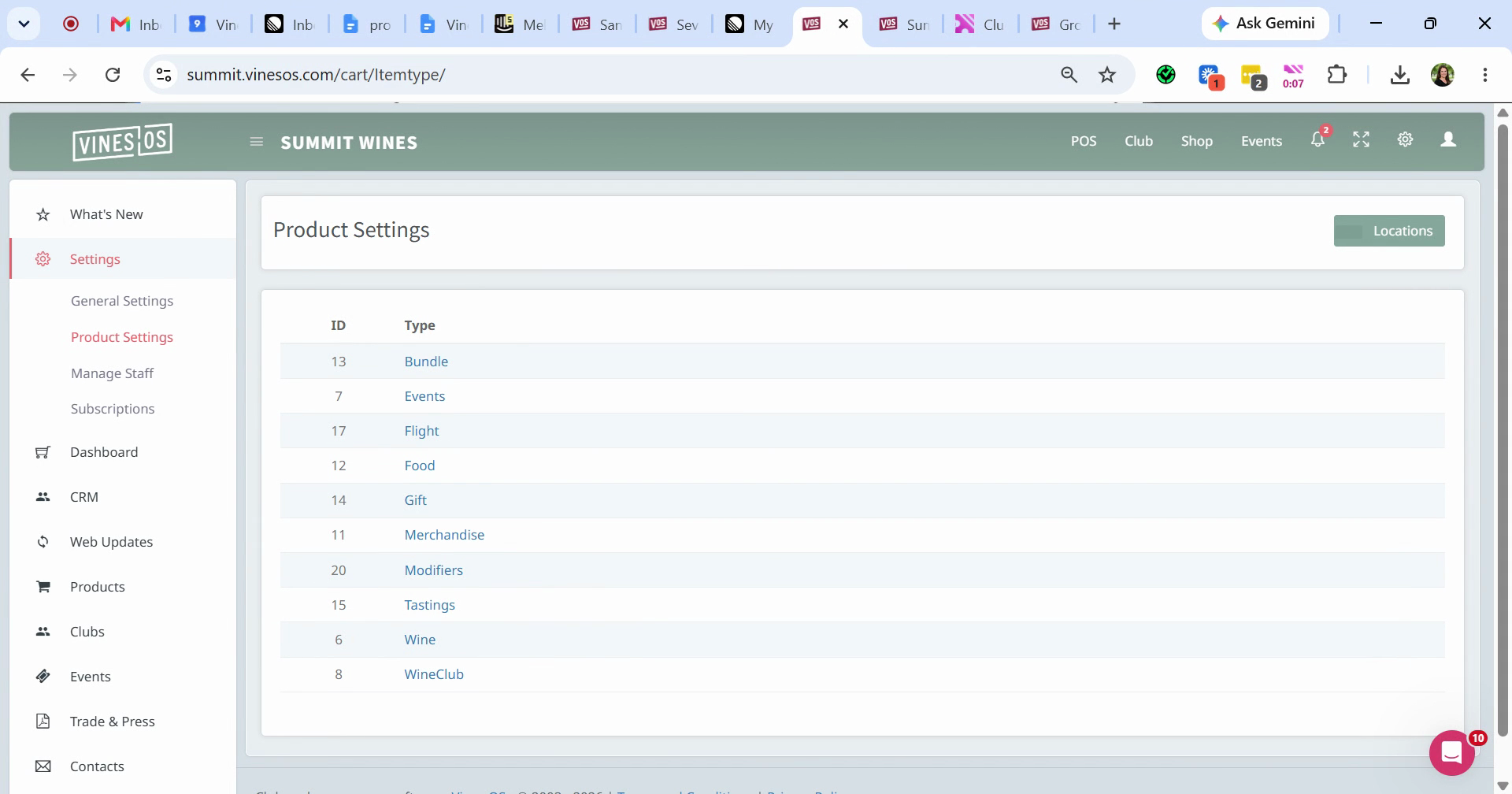
Step 1: Go to your product settings and click Wine.
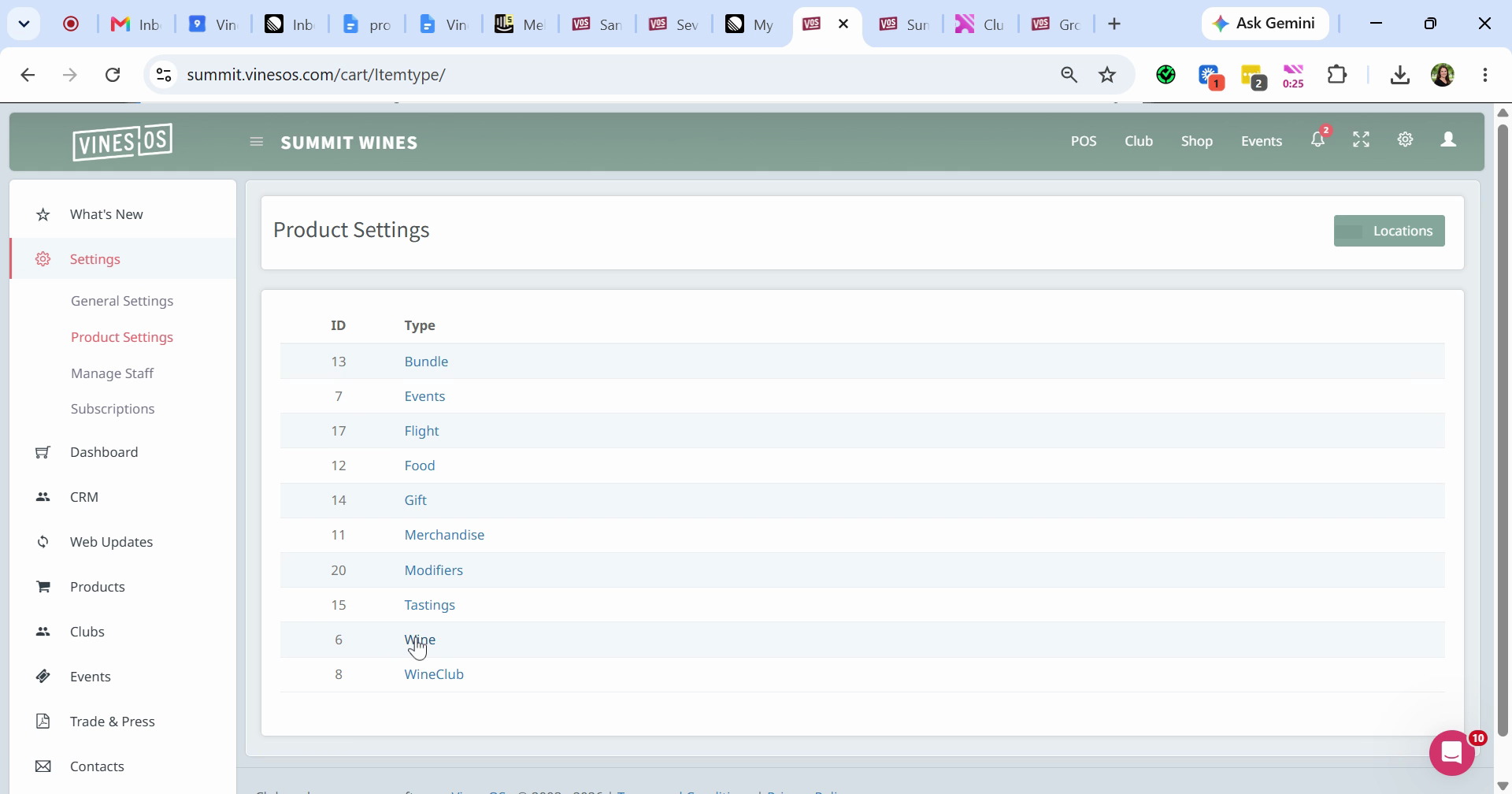
Step 2: Scroll to the bottom to see the tags you've already created.
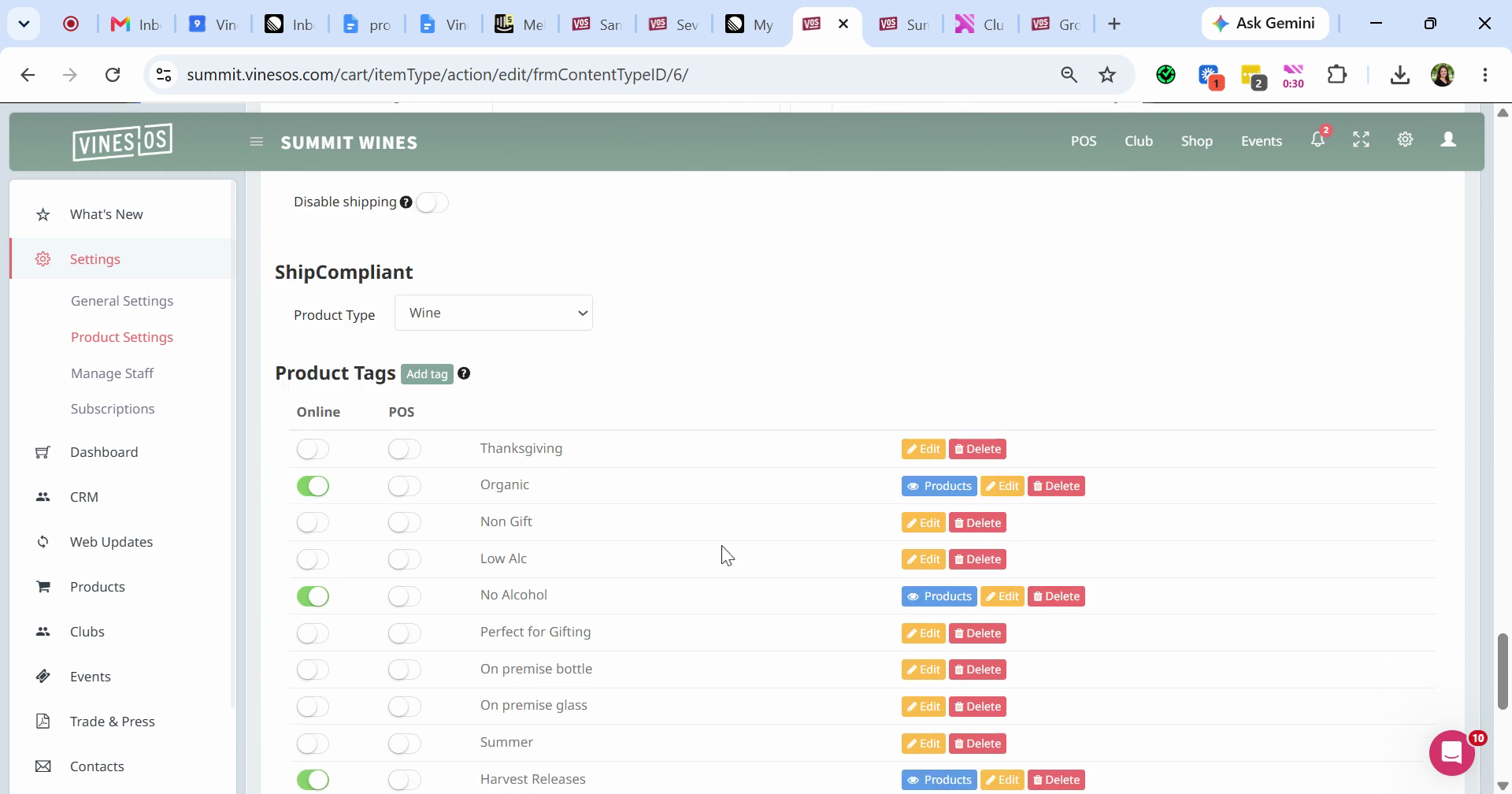
Step 3: Click Add Tag to create a new one, type in the name, and save it.
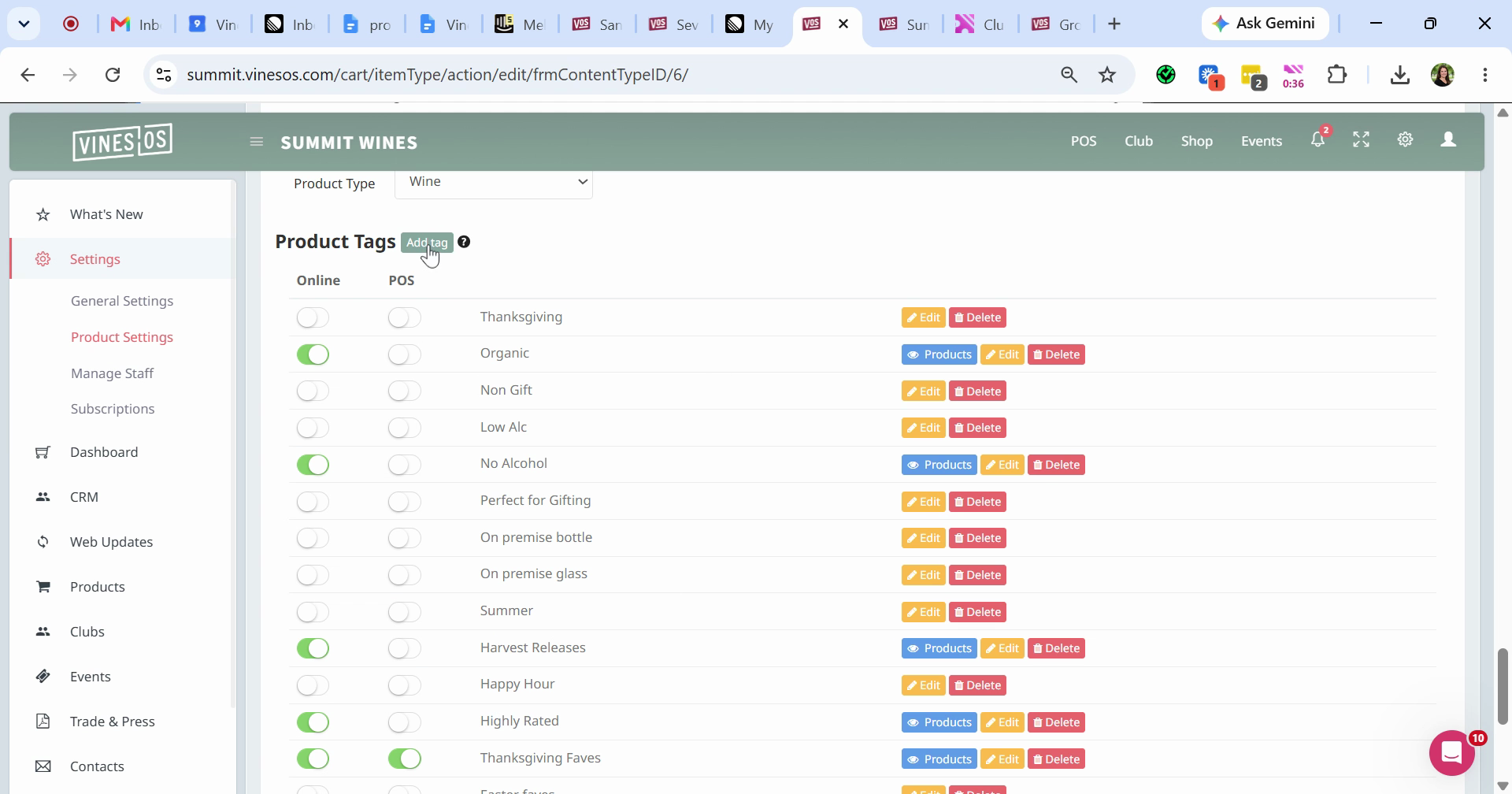
Step 4: Choose where the tag appears: online on your shop page, on your POS, or both.
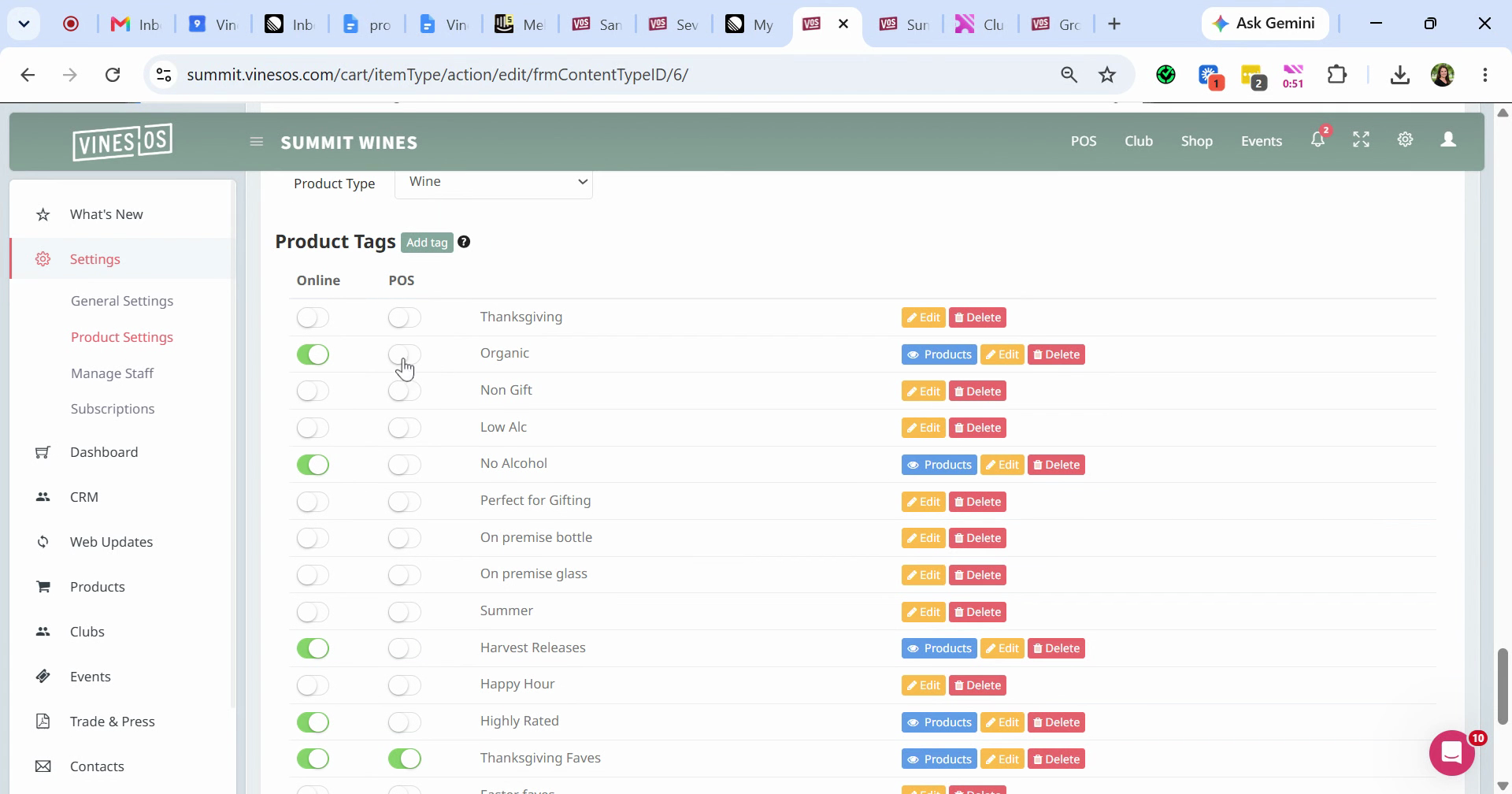
Step 5: Click Save when you've finished creating your tags.
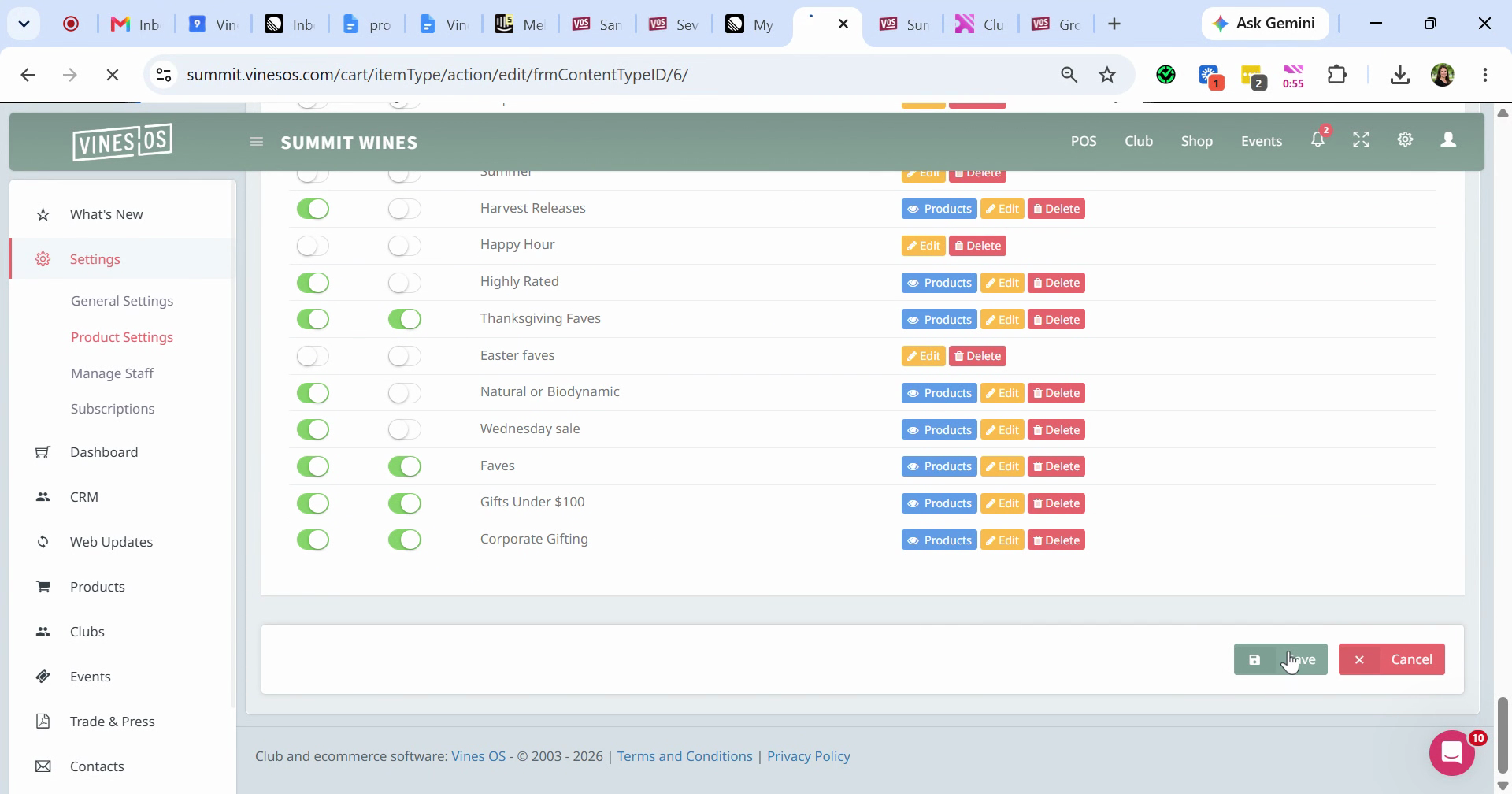
Step 6: Go to Products, then select Wine.
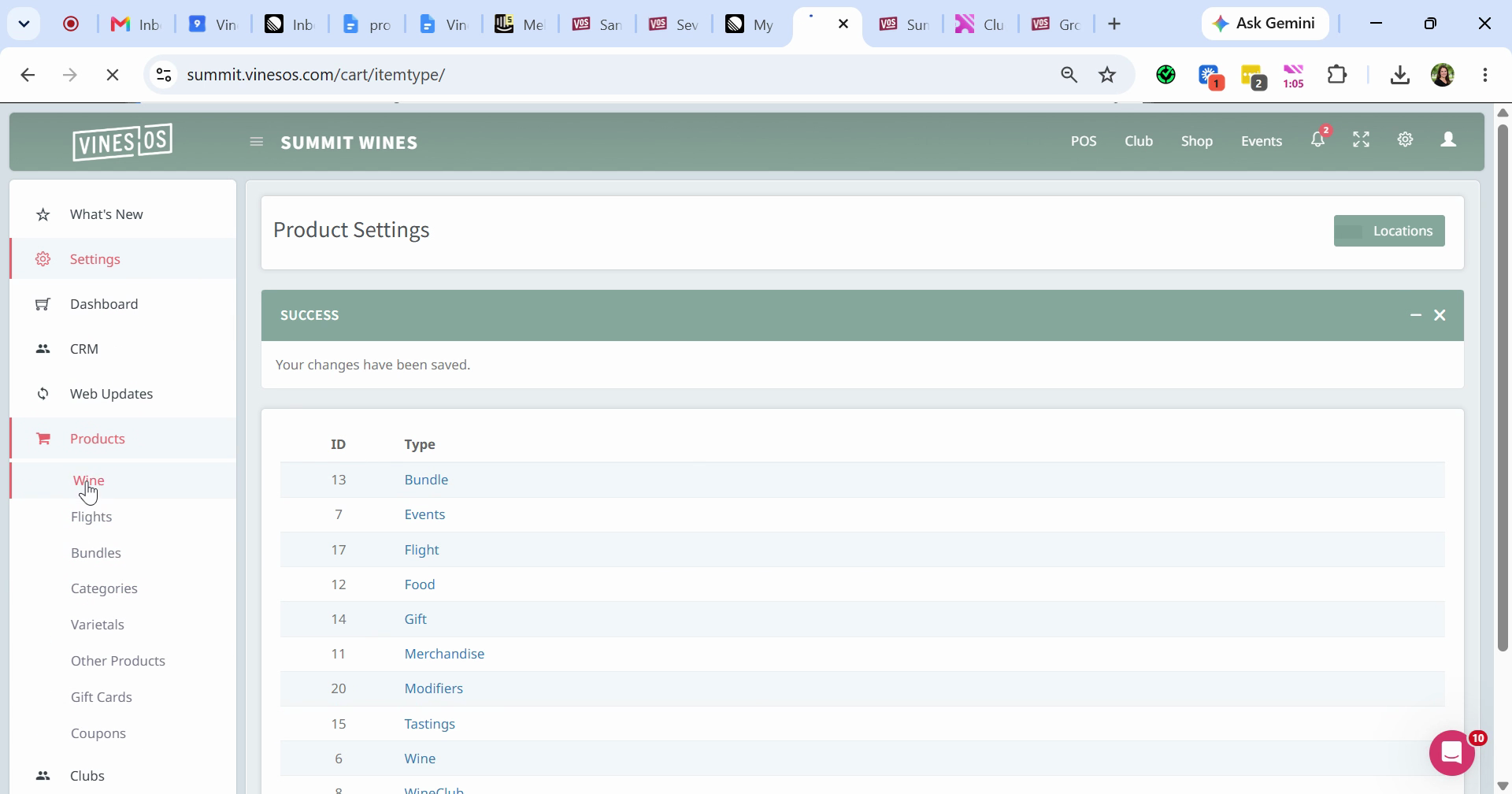
Step 7: Select the wines you'd like to tag.
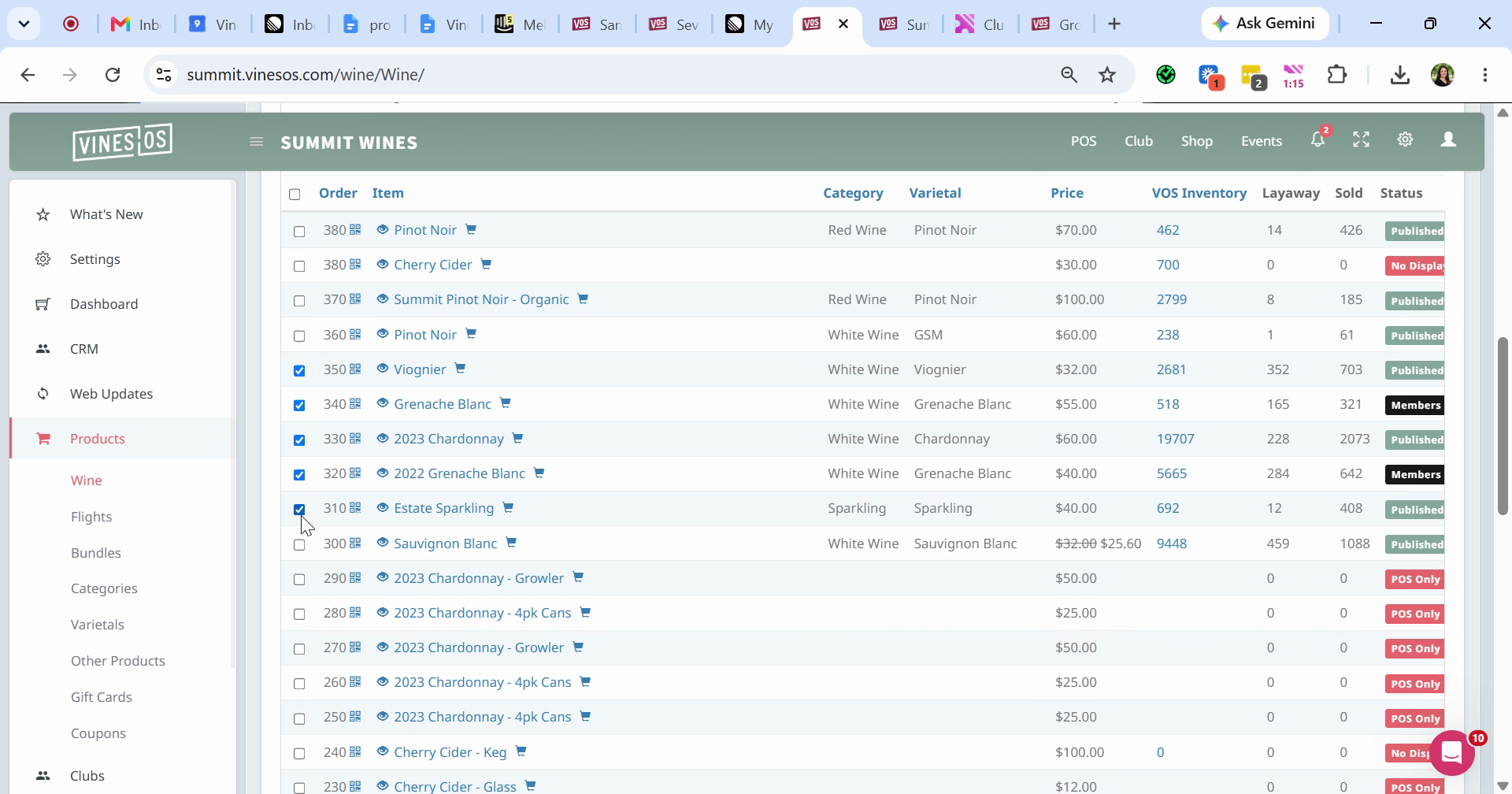
Step 8: Scroll to the bottom and select the tag you want to use.
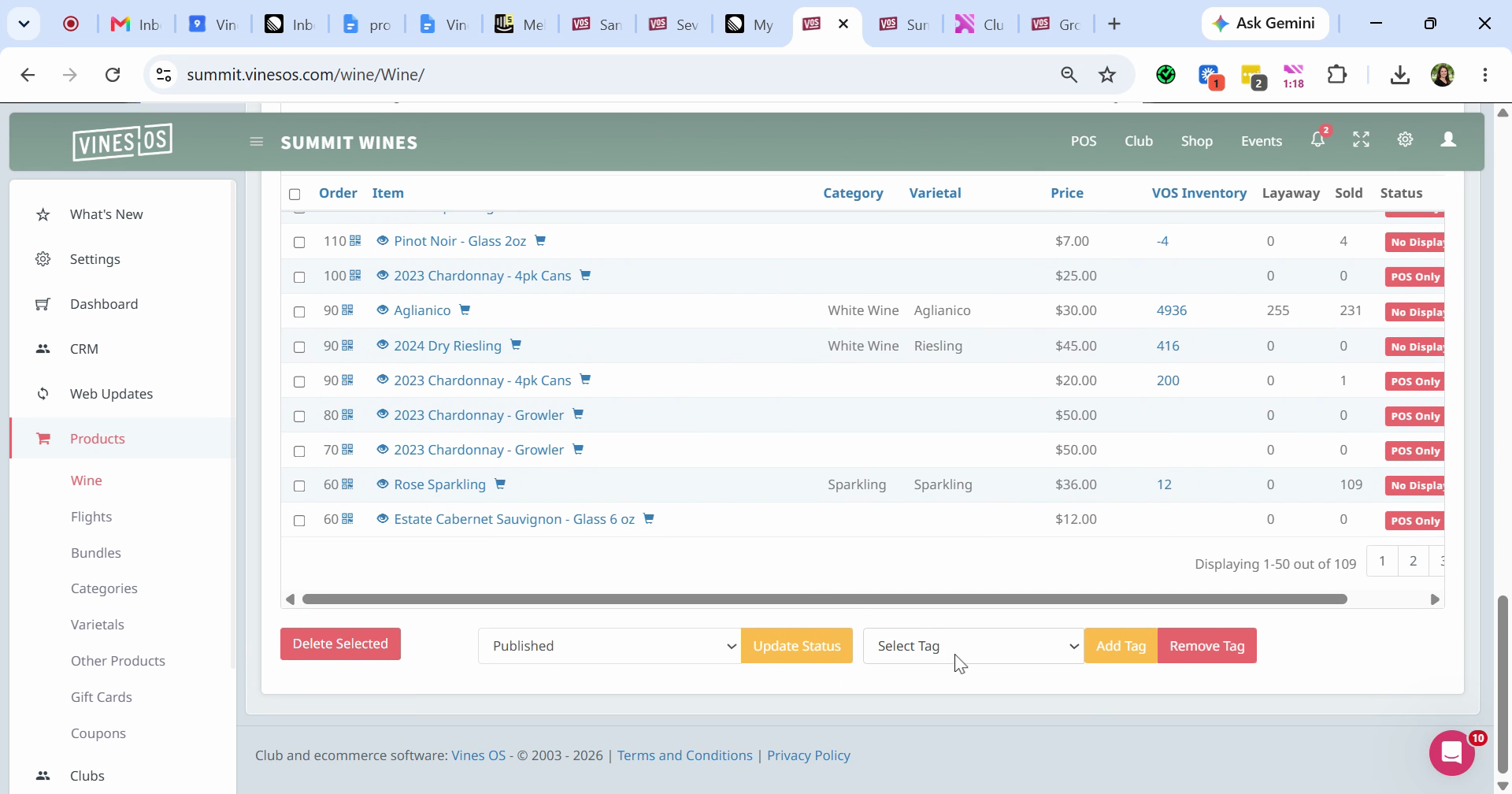
Step 9: Click Add Tag.
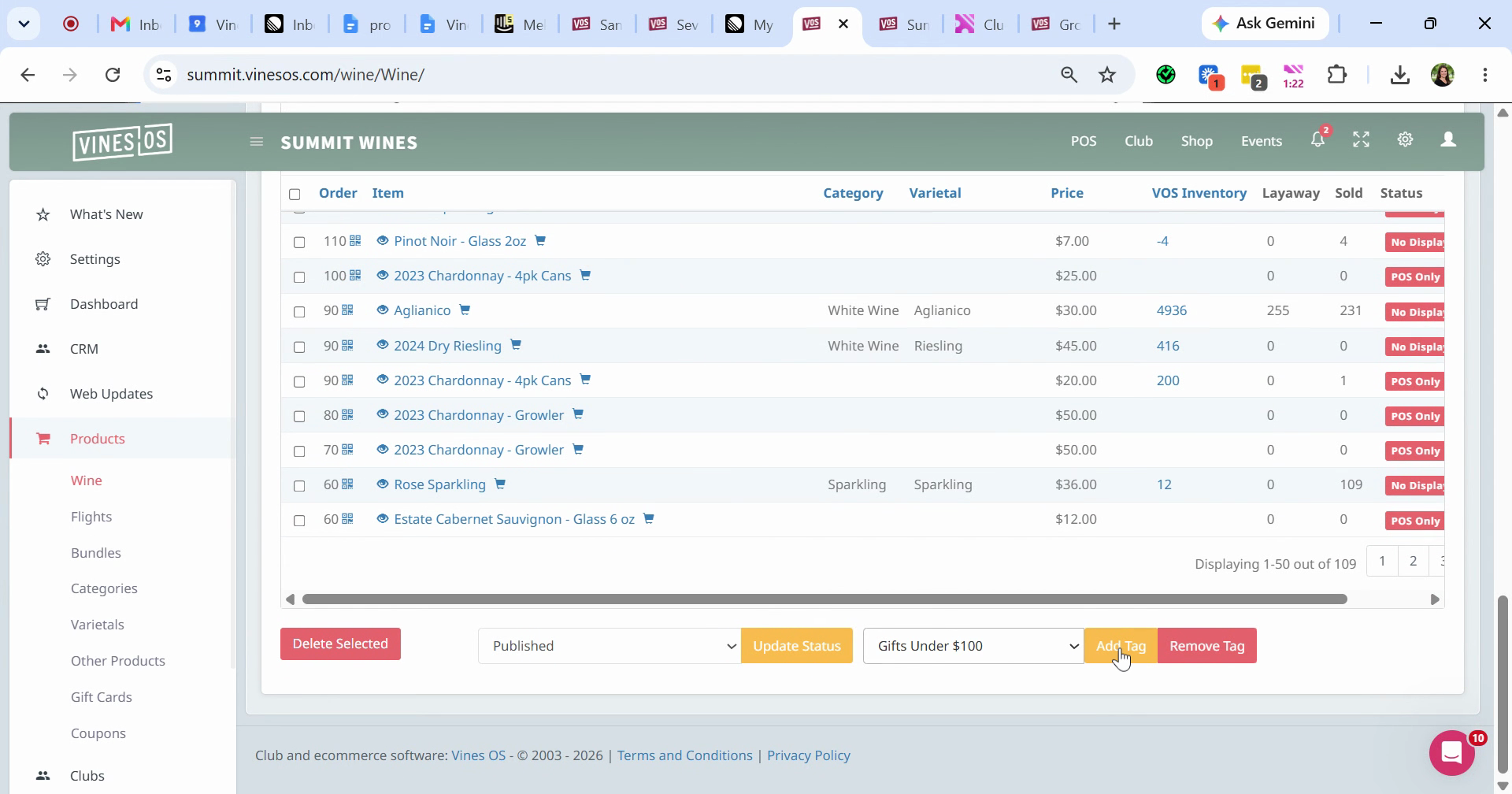
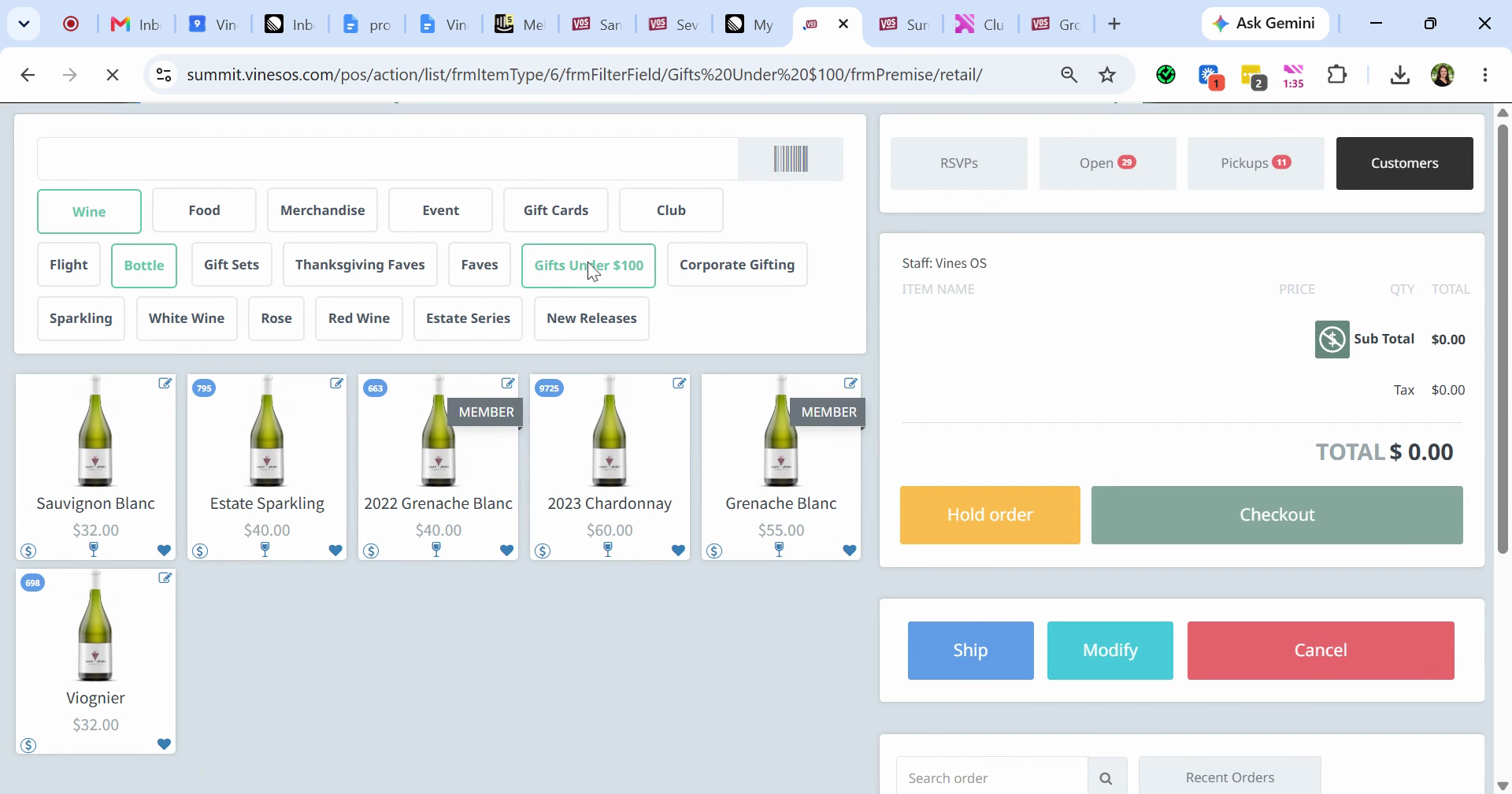
Your POS now shows a button for that tag. Click it to see every wine you've added the tag to.
Create Holiday Bundles
Bundles let you package products for gifting and feature them on your shop page.
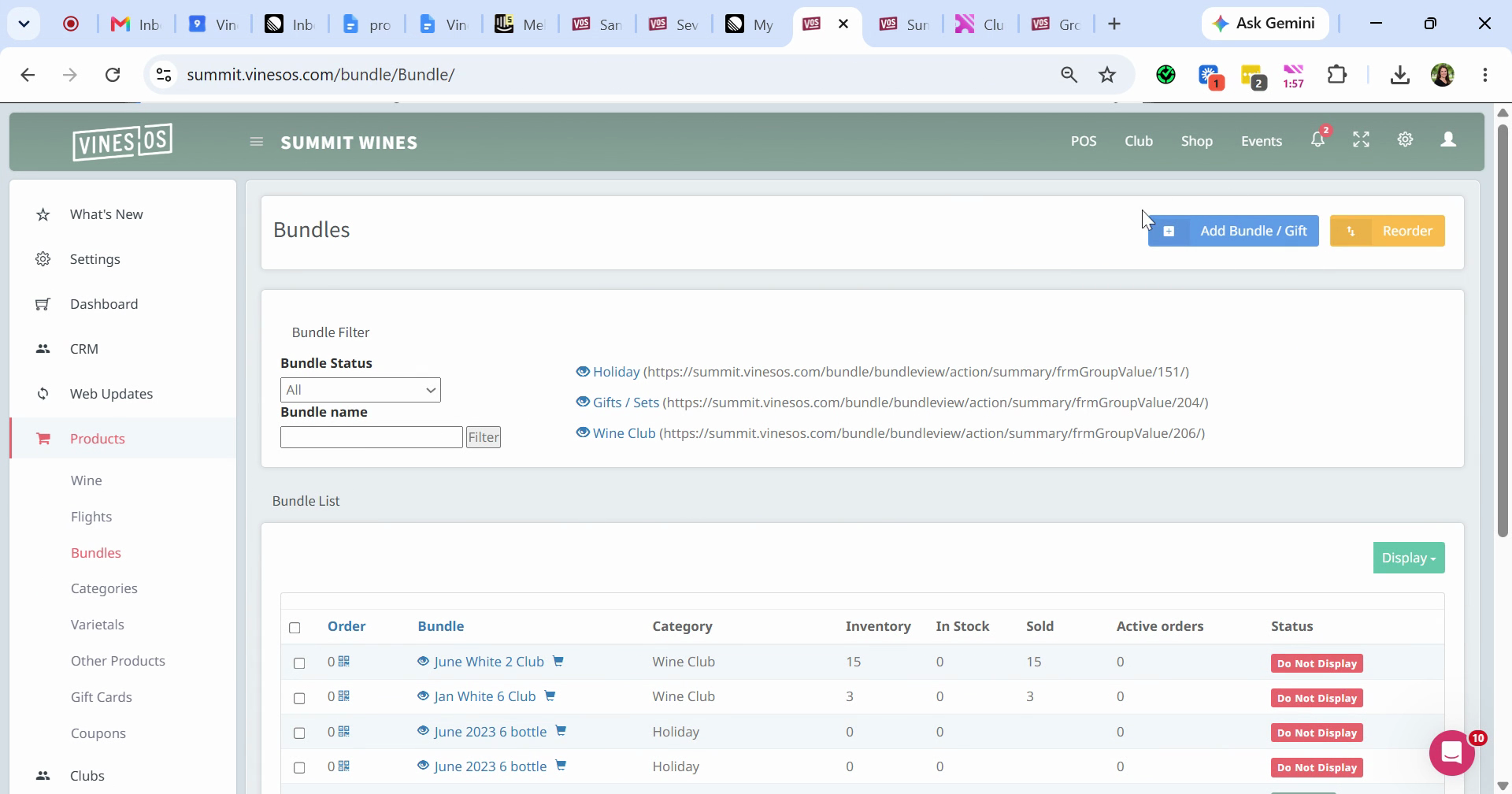
Step 1: Go to Products, then click Bundles.
Step 2: Click Add Bundle or Gift to create a new one. To edit an existing bundle, scroll down and select it.
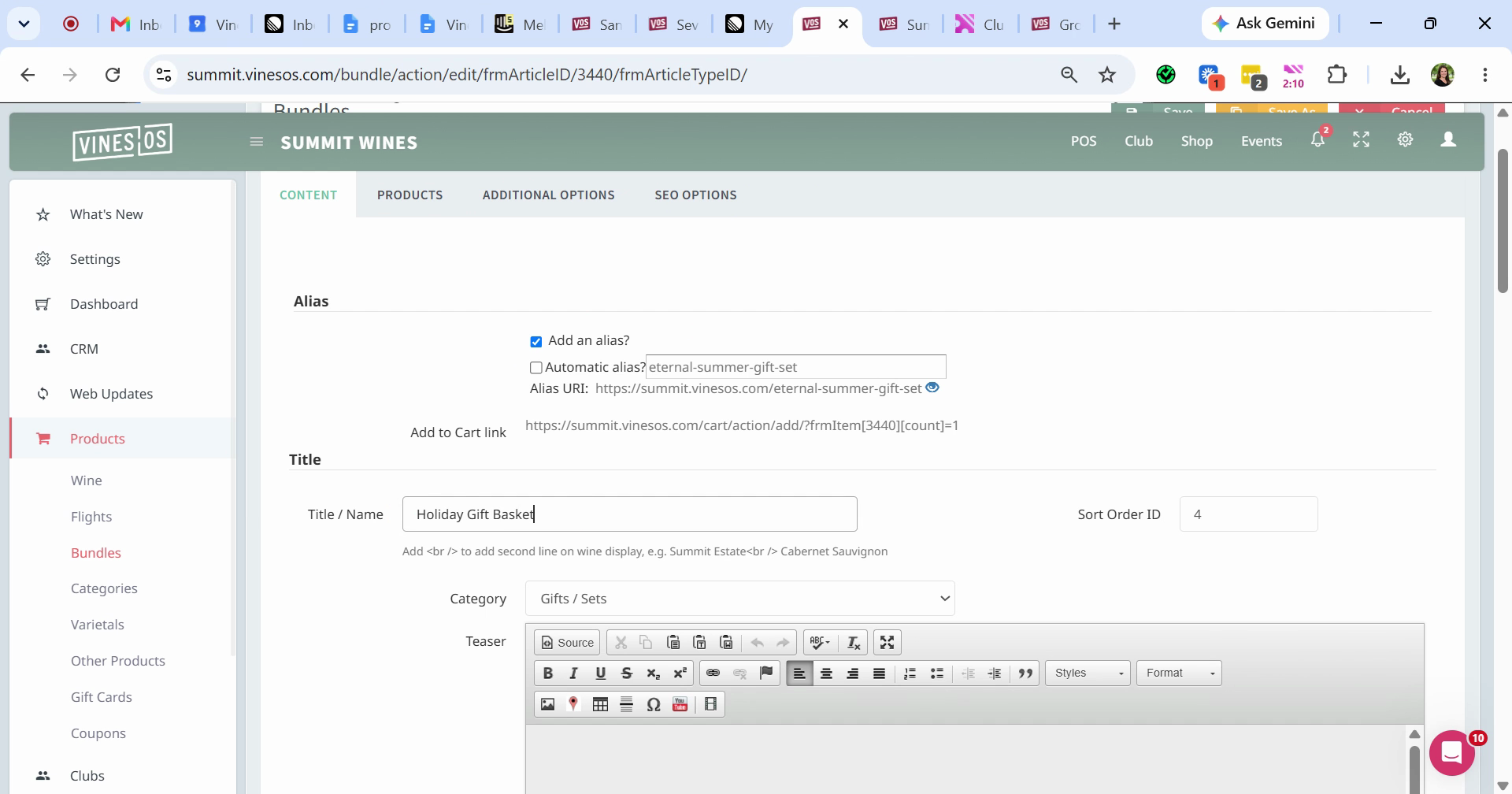
Step 3: Enter the name of the product.
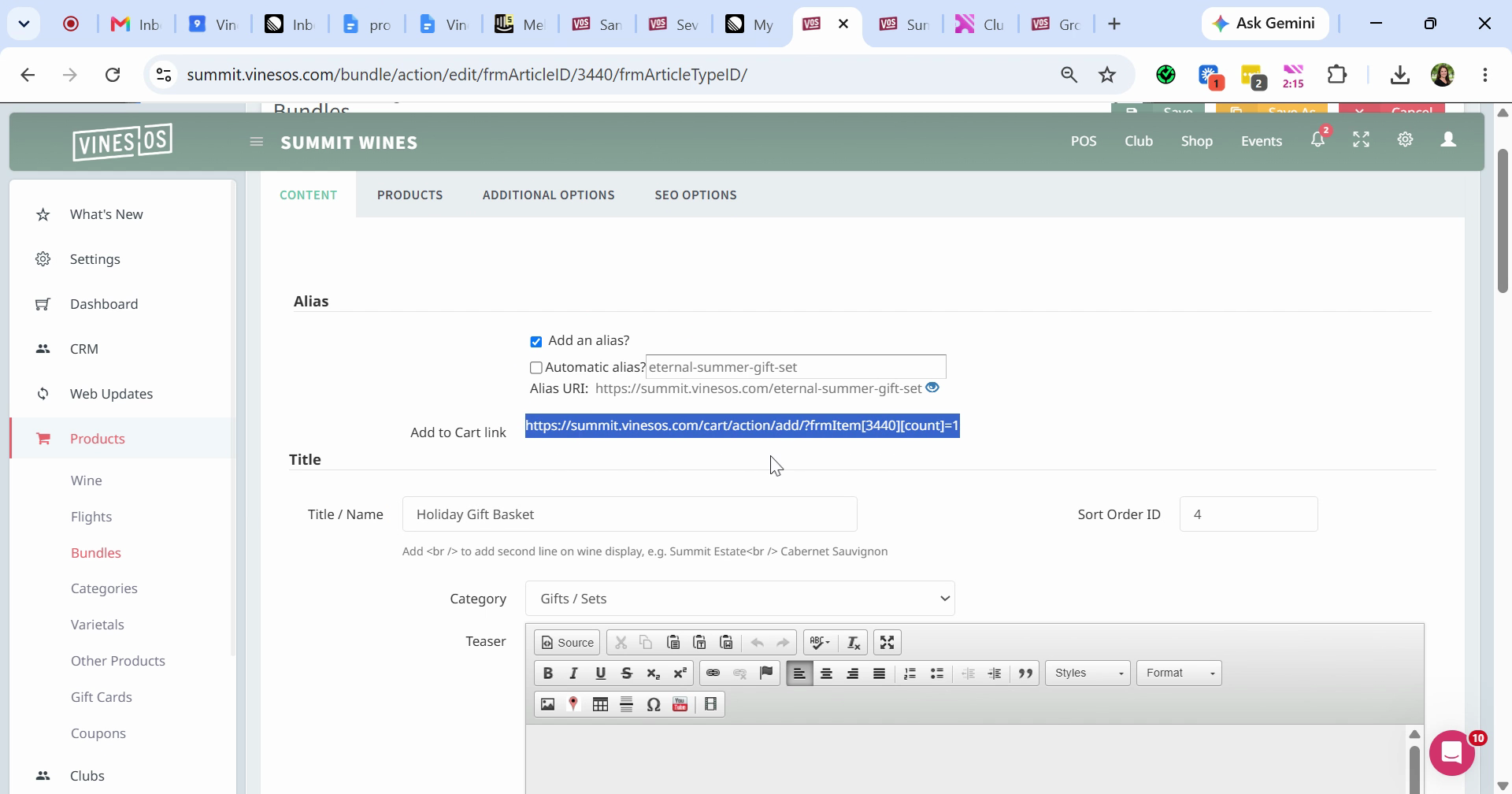
Step 4: Copy the Add to Cart link if you want to feature the bundle in an email. When customers click it, the bundle goes straight into their cart instead of sending them to the shop page.
Step 5: Scroll down and select Yes under Gift. This makes the bundle show up in the gift section on your shop page.
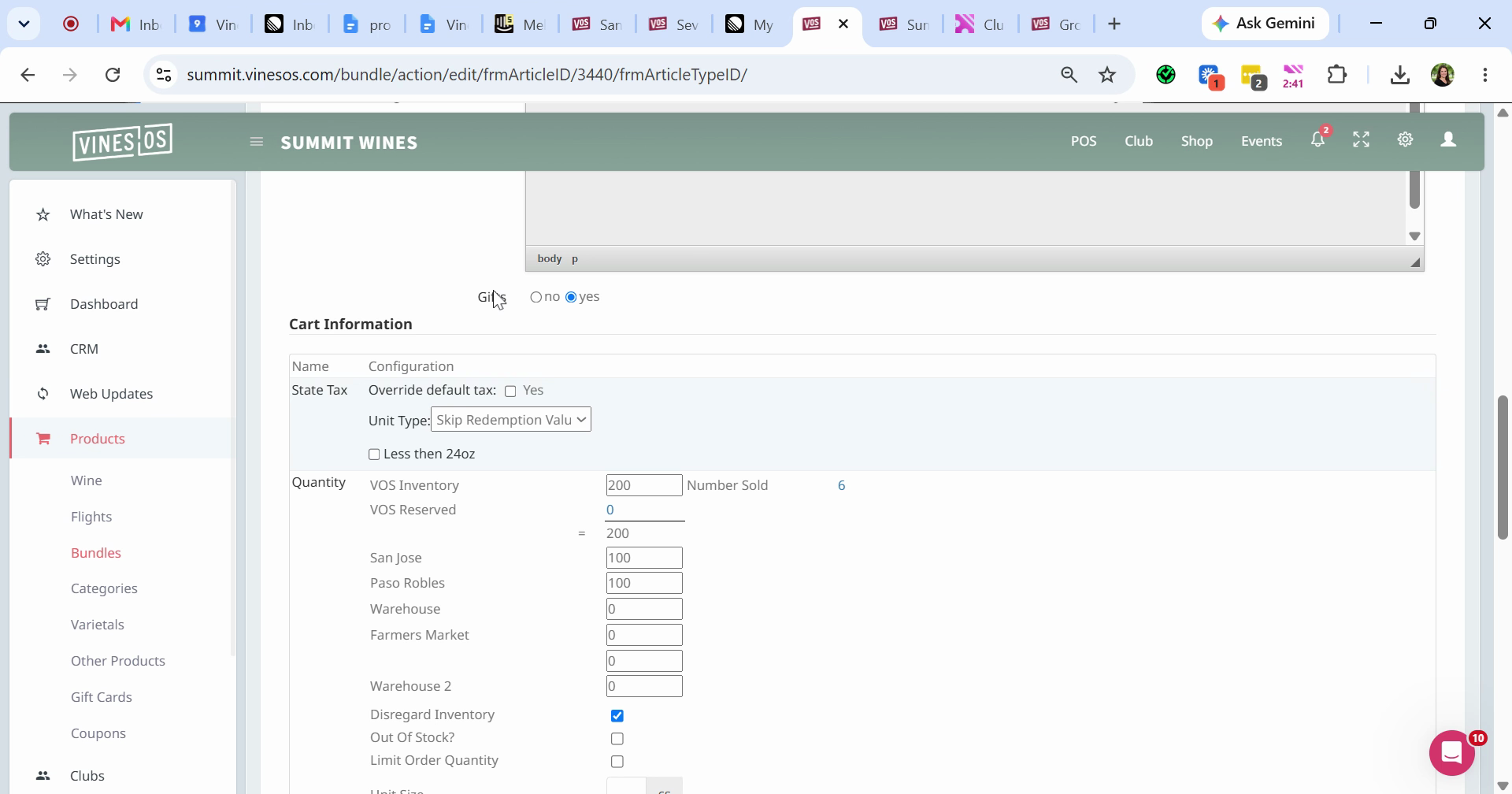
Any product on your site can be a gift, not just wine. Mark anything you'd like to appear in that section.
Step 6: Add inventory, then fill out the shipping and pricing information.
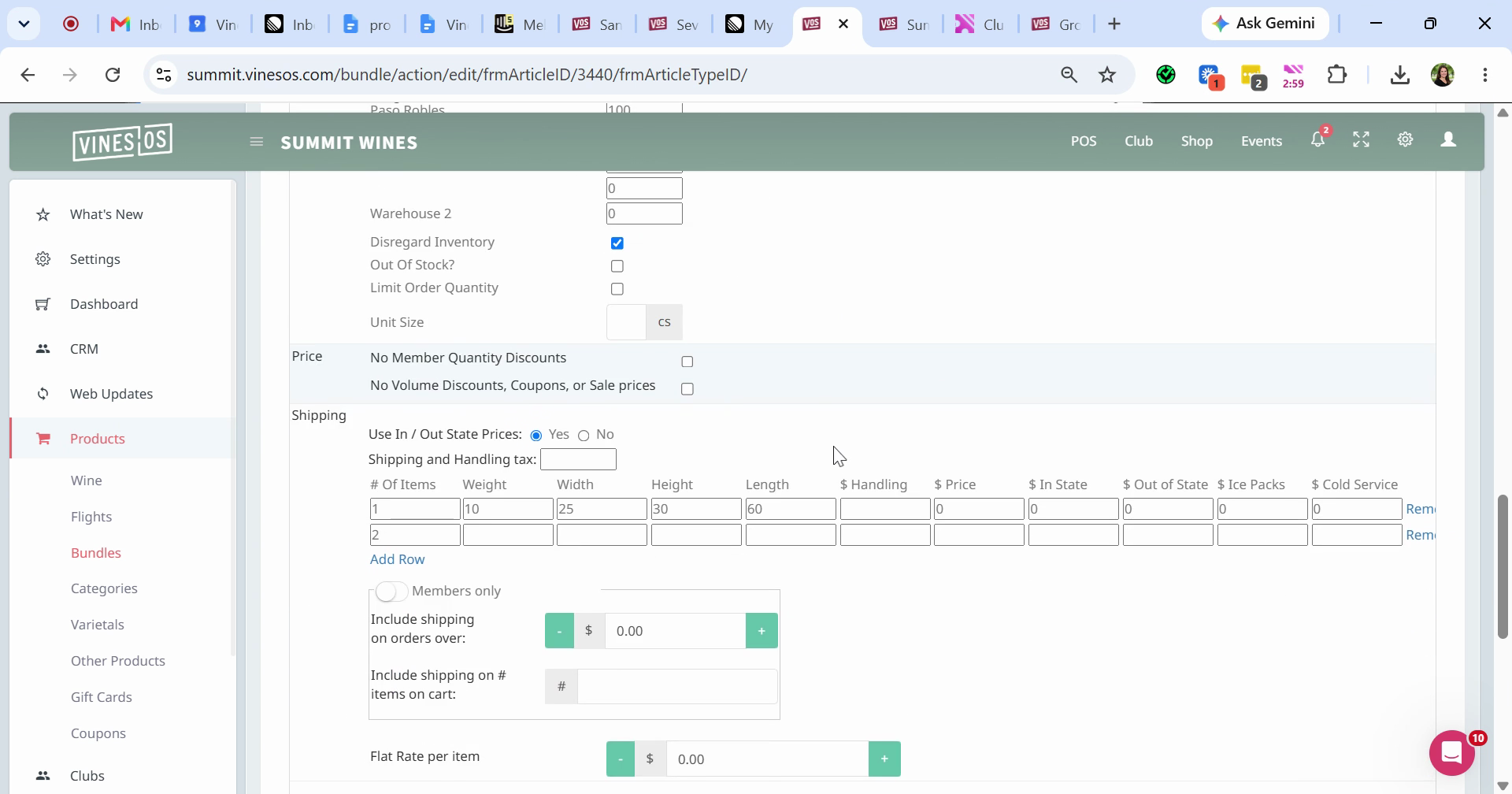
Step 7: Add a photo.
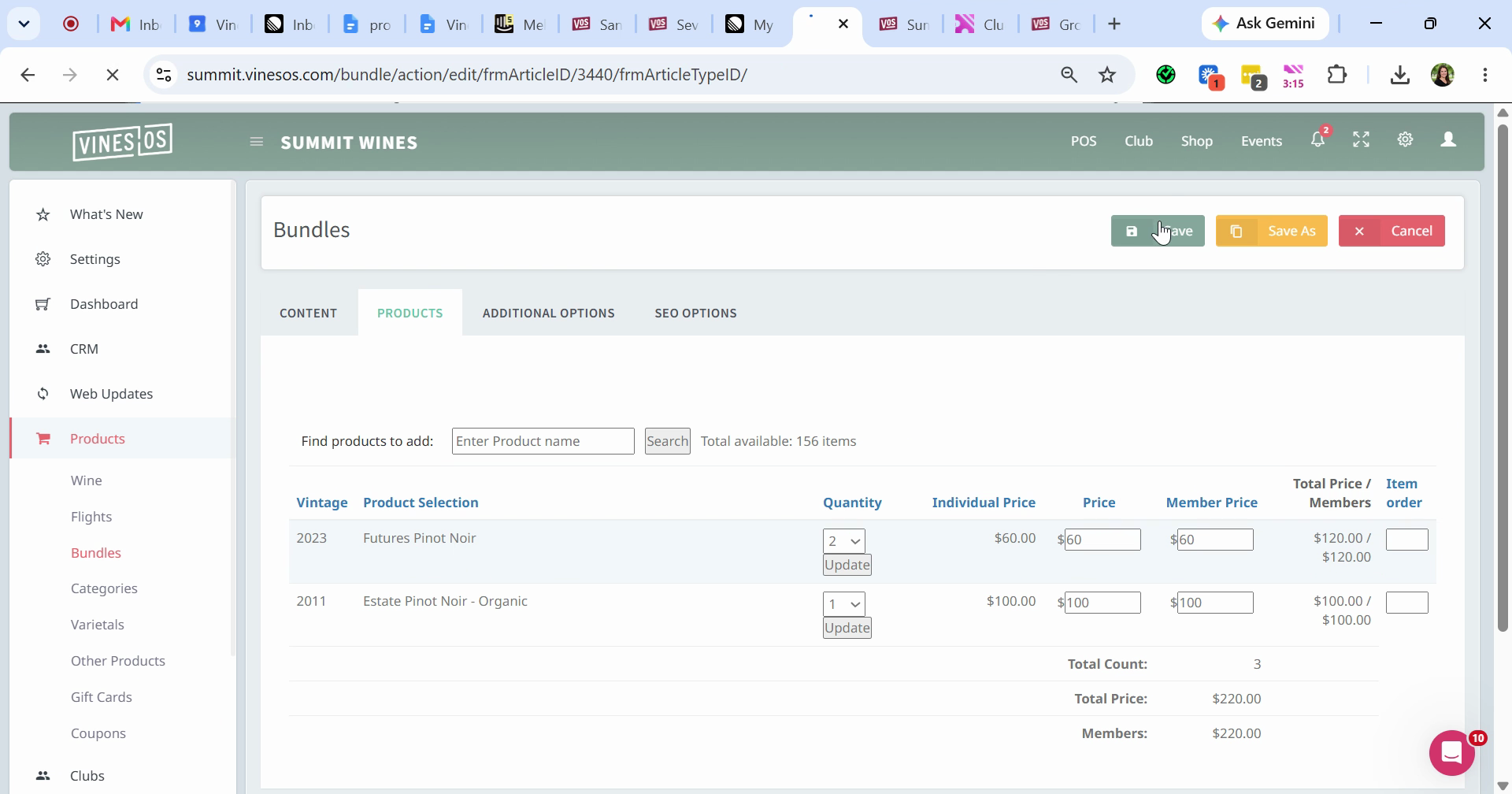
Step 8: Scroll back to the top and click the Products tab. Add the products that belong in the bundle.
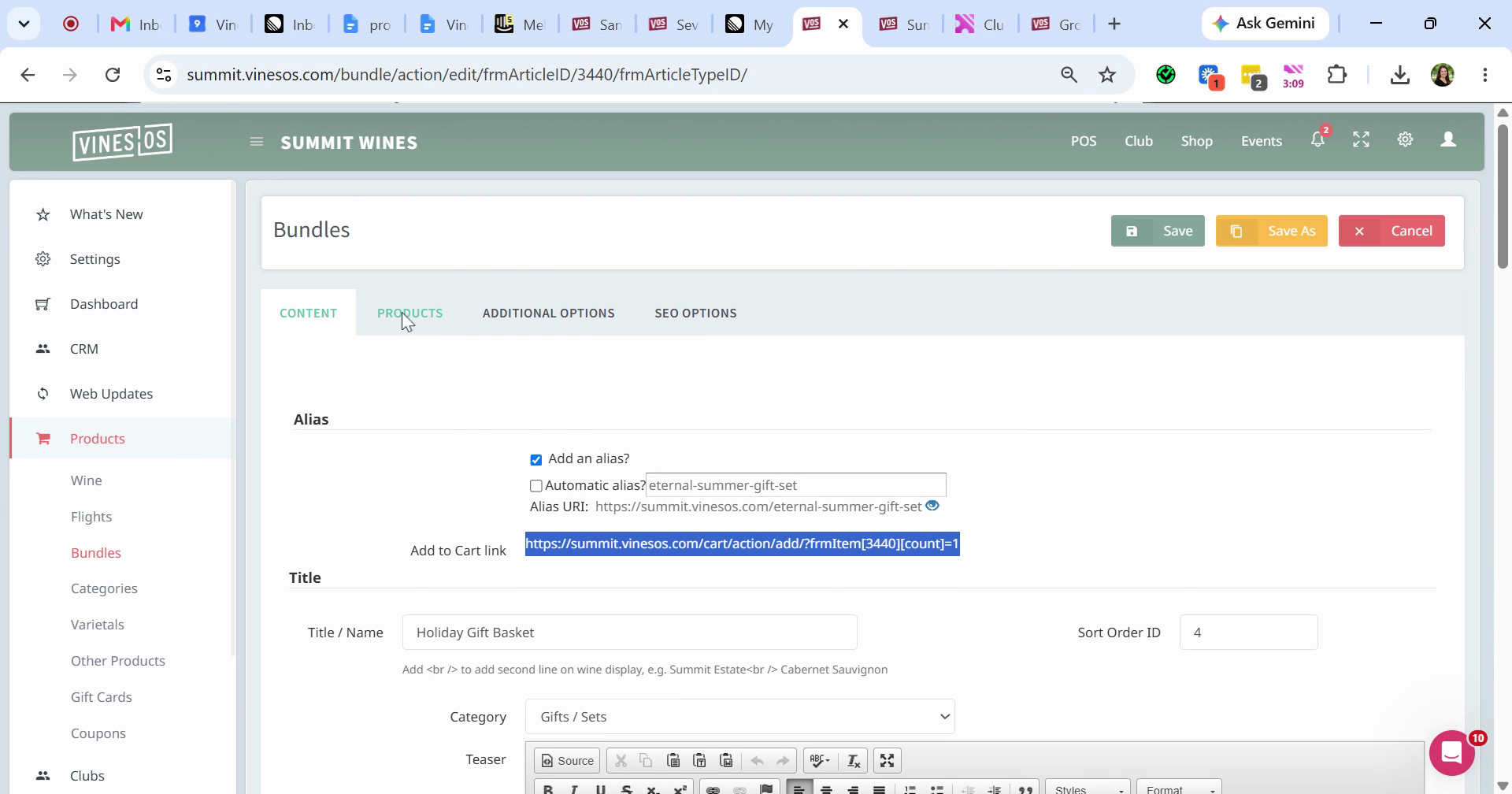
Step 9: Click Save.
Find your bundles on the POS under Gift Sets.
See Your Gifts on the Shop Page
Every tag you create appears on your shop page. For example, tagging products with "Gifts Under $100" adds that tag to the list.
Step 1: Select the tag you want on your shop page to see the products you've added to it.
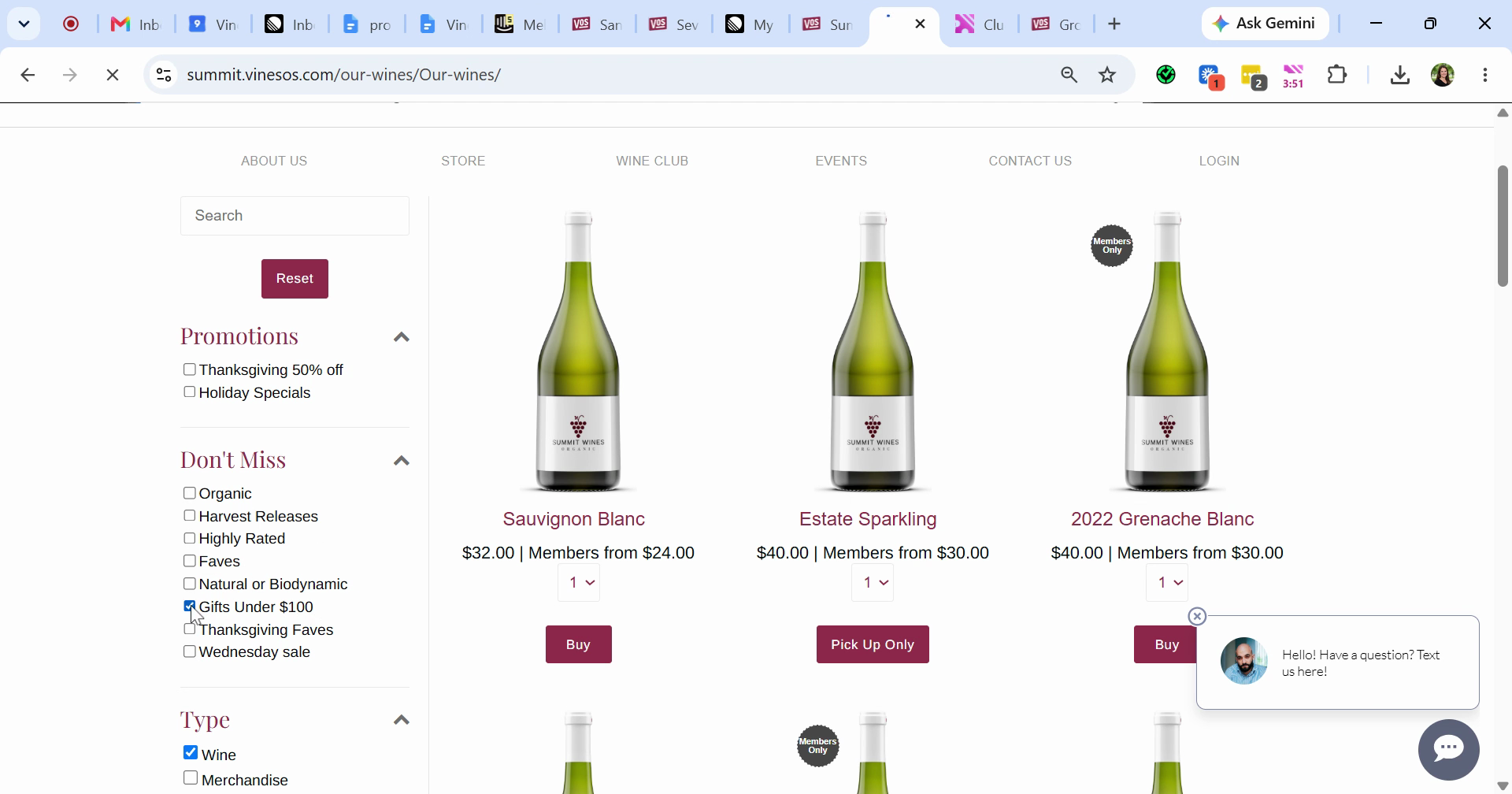
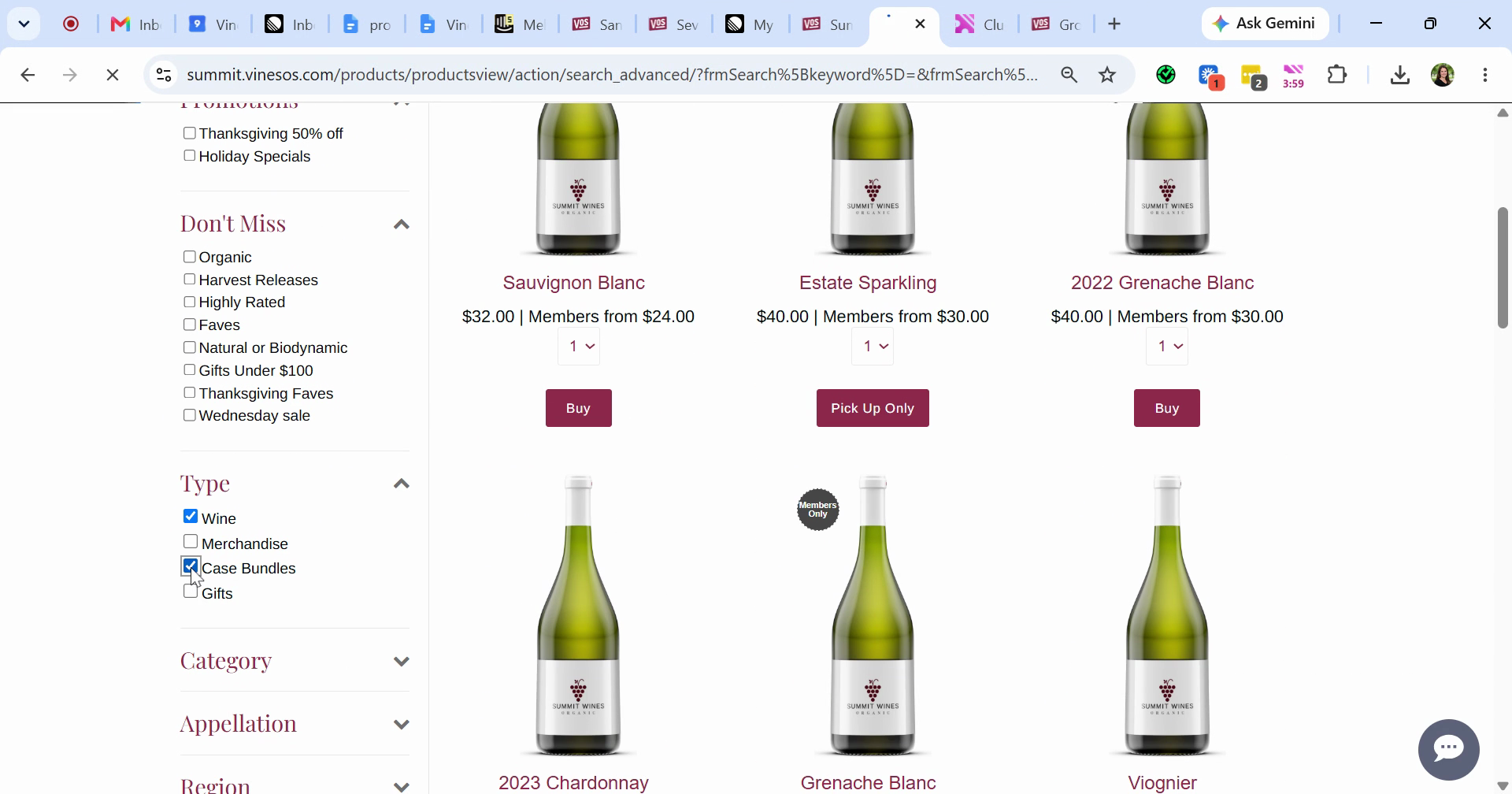
Step 2: Check Case Bundles to find your case bundles.
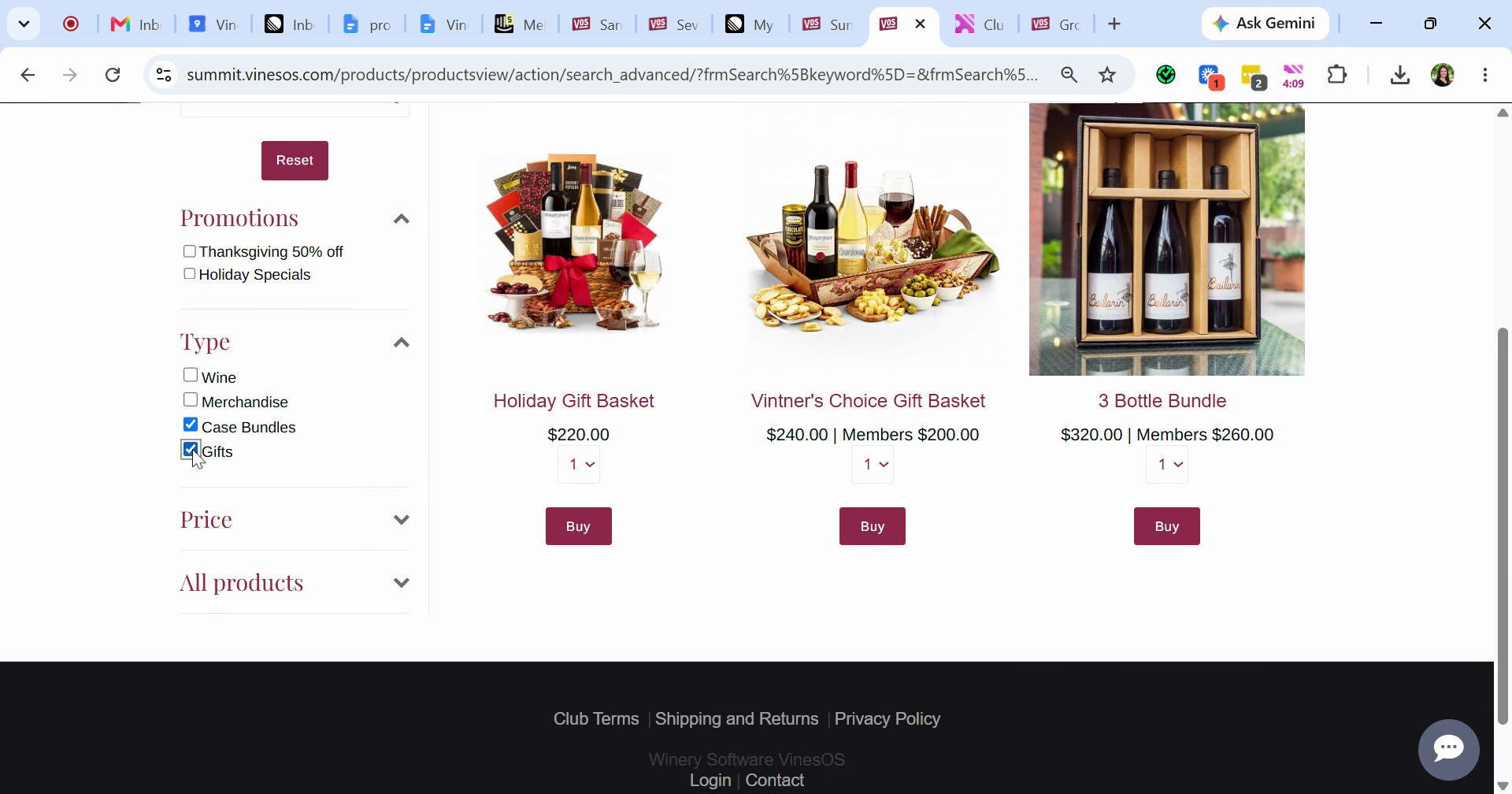
Step 3: Select the Gift section to see your bundles and gifts.
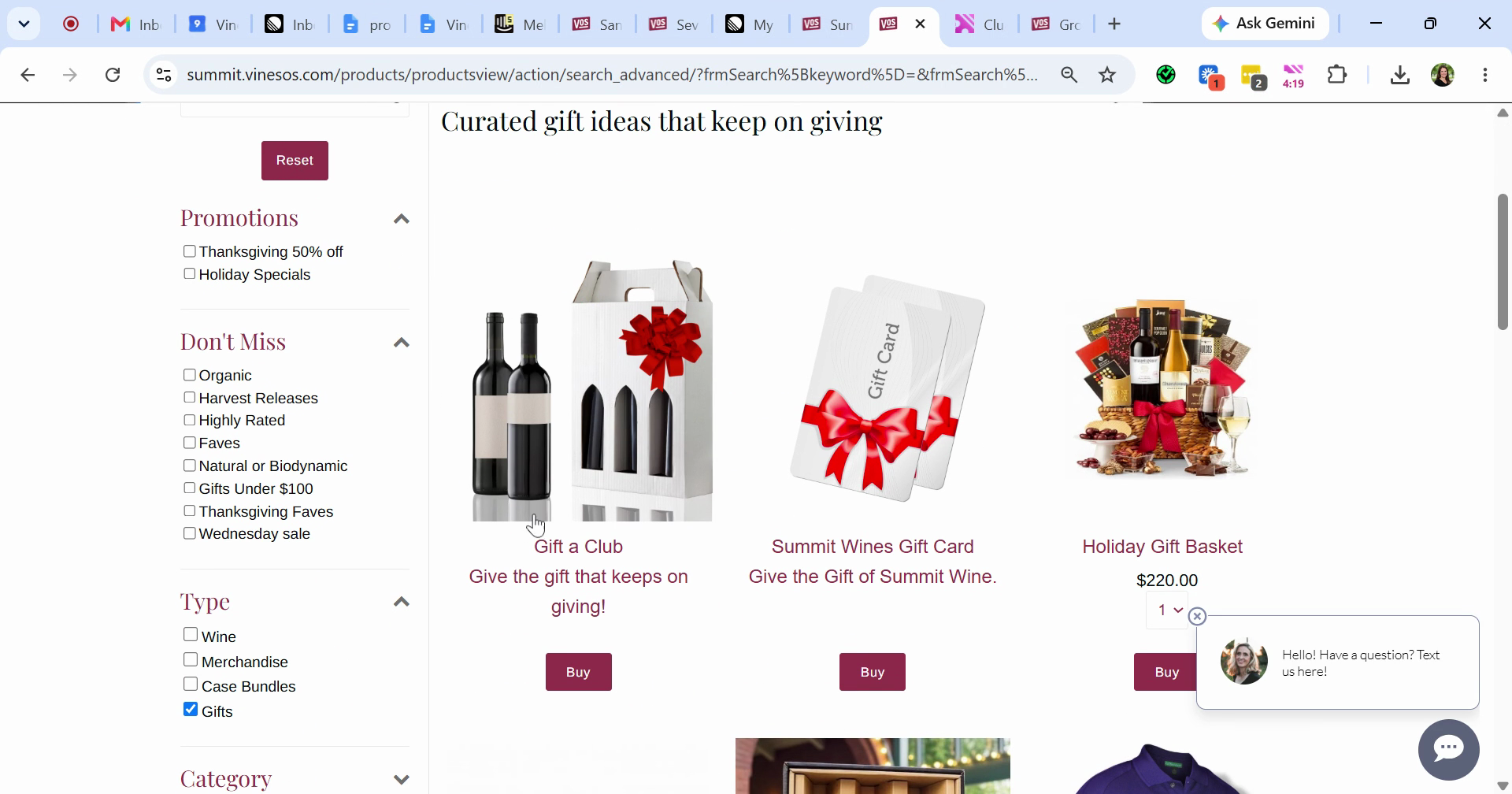
The Gift section also includes your gift club option, your gift card options, and any other product you've tagged as Gift.
Product tags and holiday bundles are two great ways to optimize gifting on your site with VinesOS. Tag your top wines, build a few bundles, and make gift shopping effortless for your customers.
Created on
Did you find this article helpful?