
Want to highlight a special promotion on your shop page? Set up a coupon that automatically applies to select products—perfect for campaigns like “Buy six bottles and shipping’s on us.” This guide walks you through setting up and displaying a targeted coupon that’s easy for customers to use at checkout.
Purchasing on your Shop page:
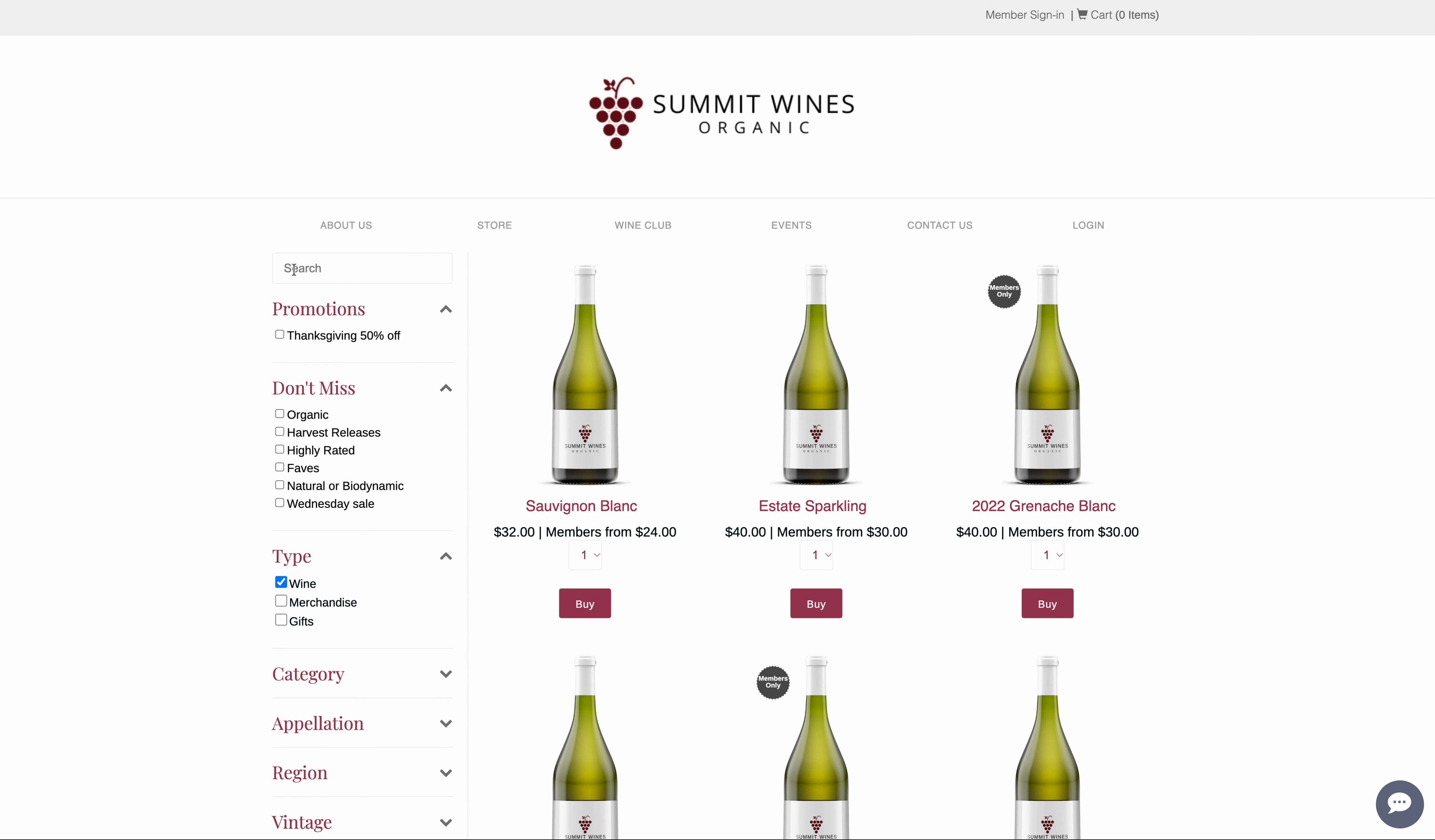
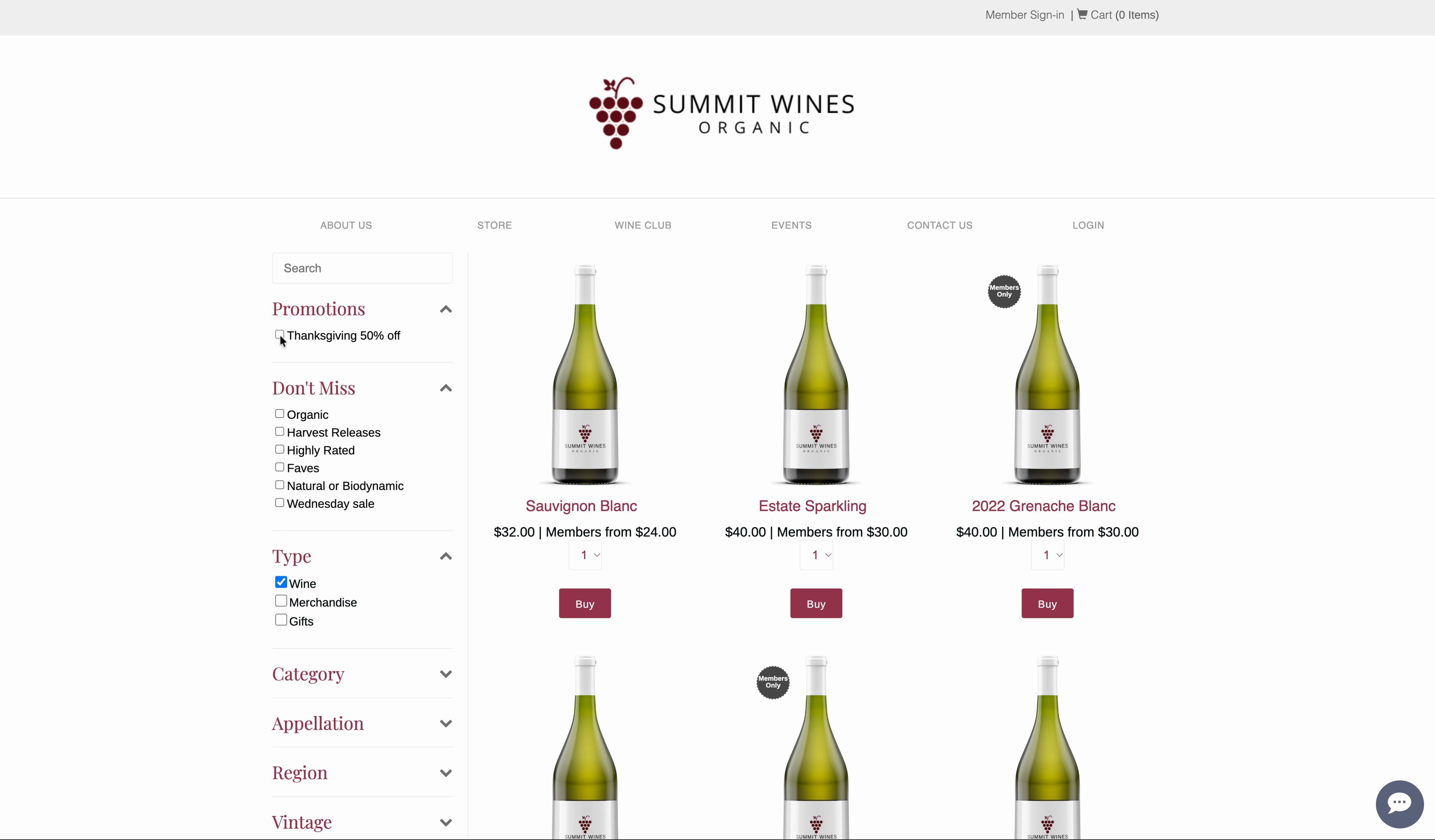
Step 3: Go to your cart and add the wines from the Promotion page, making sure to meet the minimum requirements.
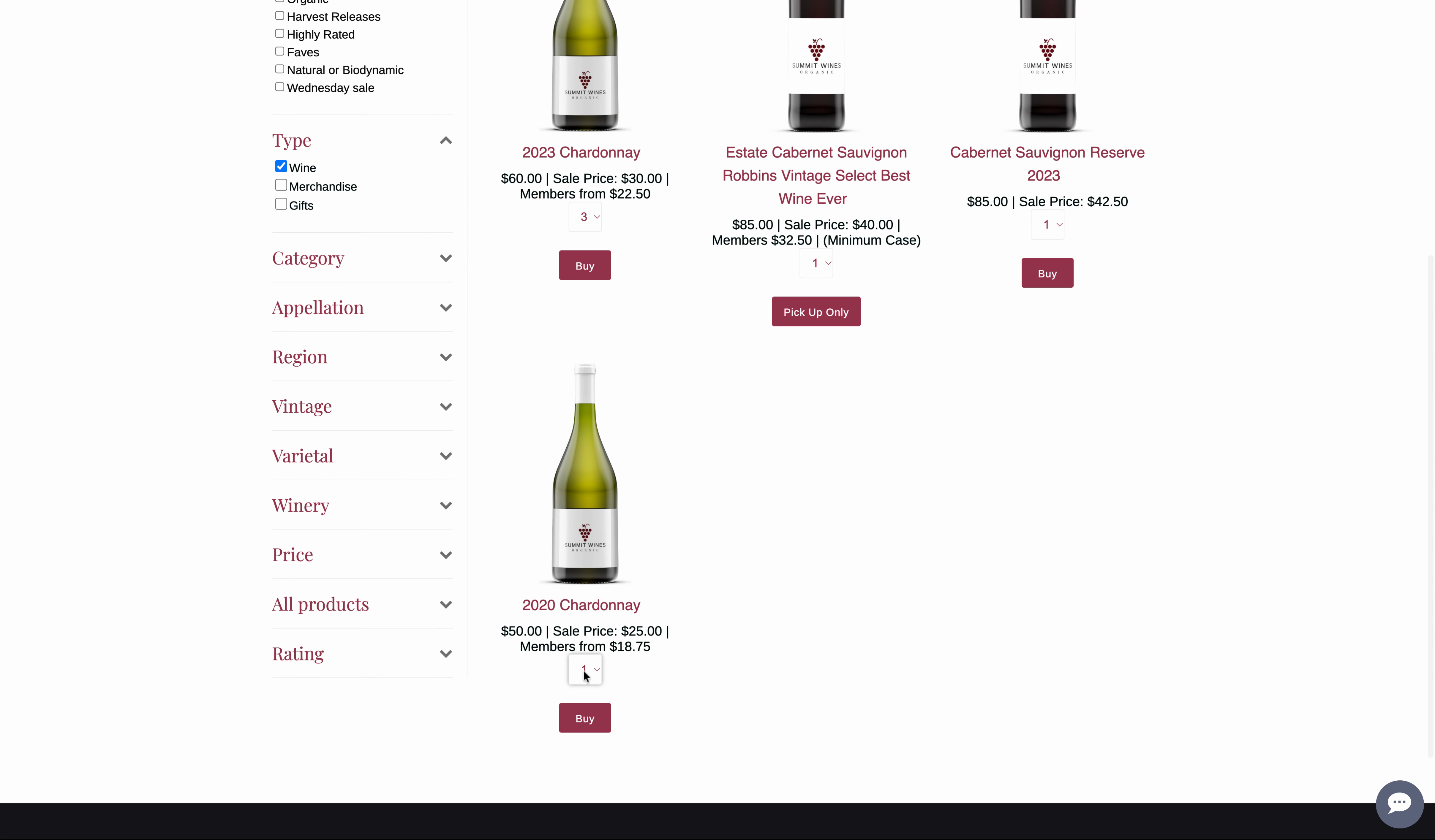
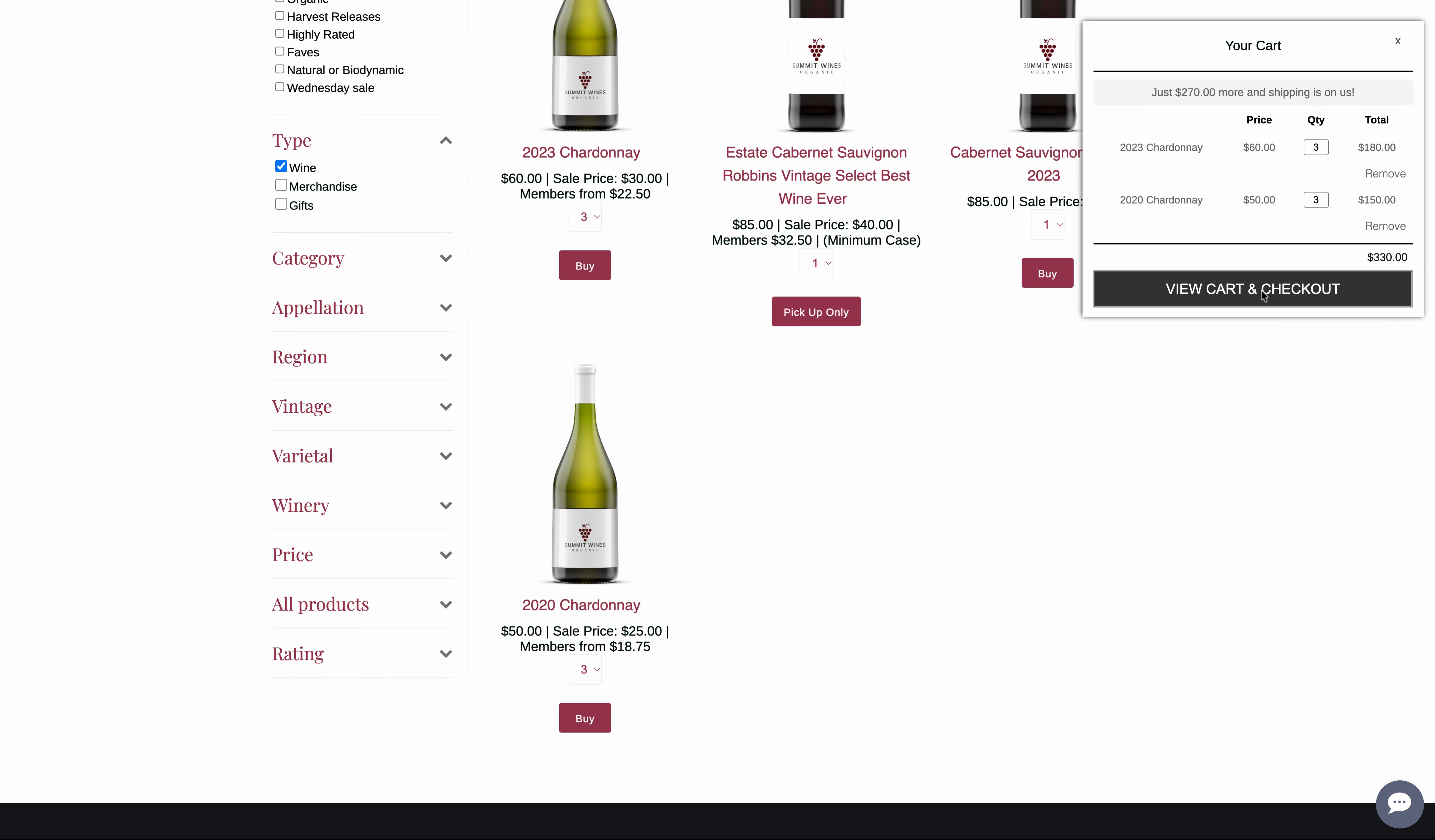
The coupon will auto-apply here if the coupon conditions are met.
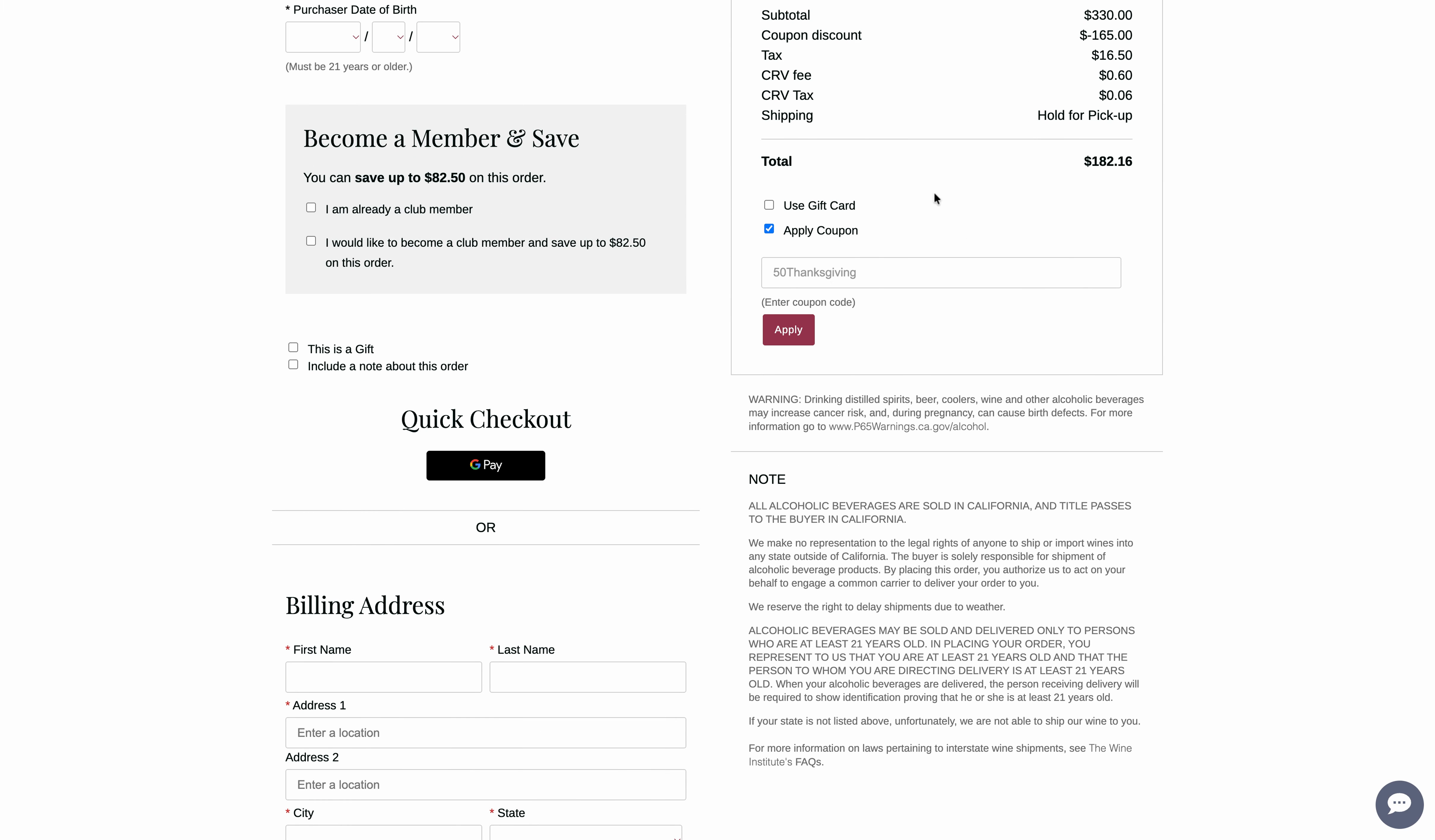
Step 4: Complete checkout as usual. The promotion applies instantly to eligible orders, the coupon code is auto-applied.
How to Set Up Auto Coupons
Ready to set this up in your store’s backend? Follow these steps.
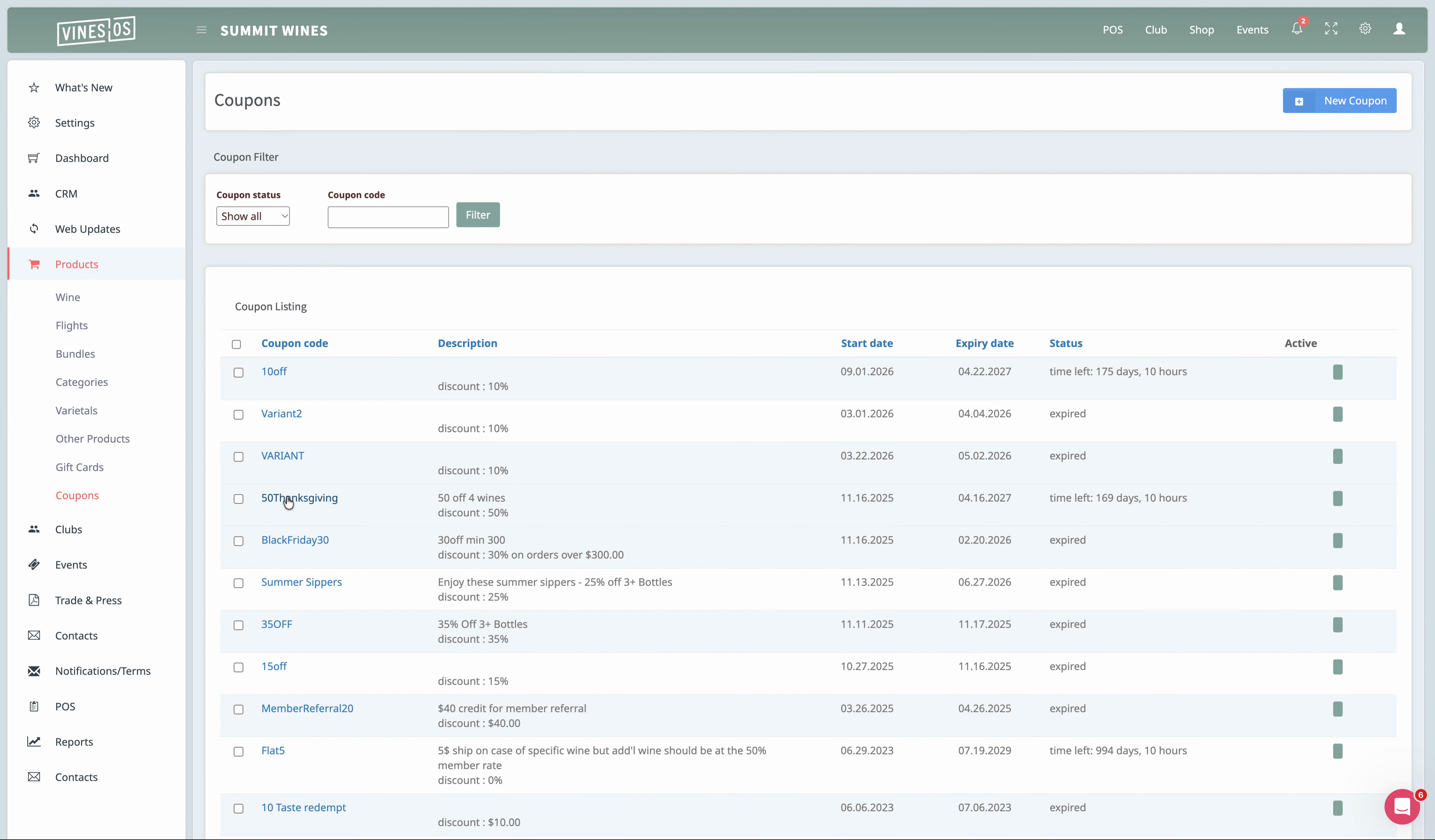
Step 1: Open the backend and navigate to Coupons.
Step 2: Create or find the coupon you want to promote, then click through to edit it.
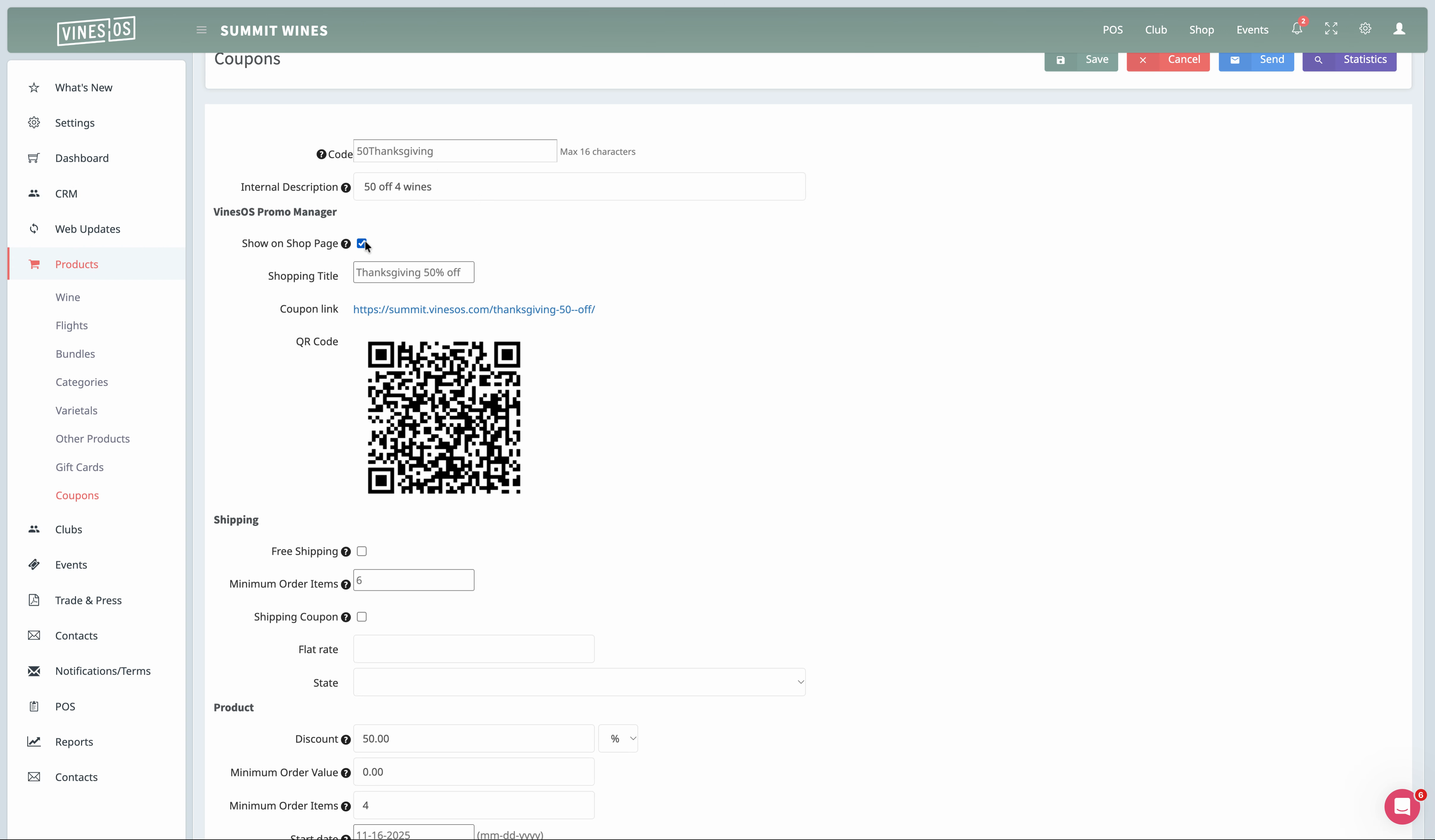
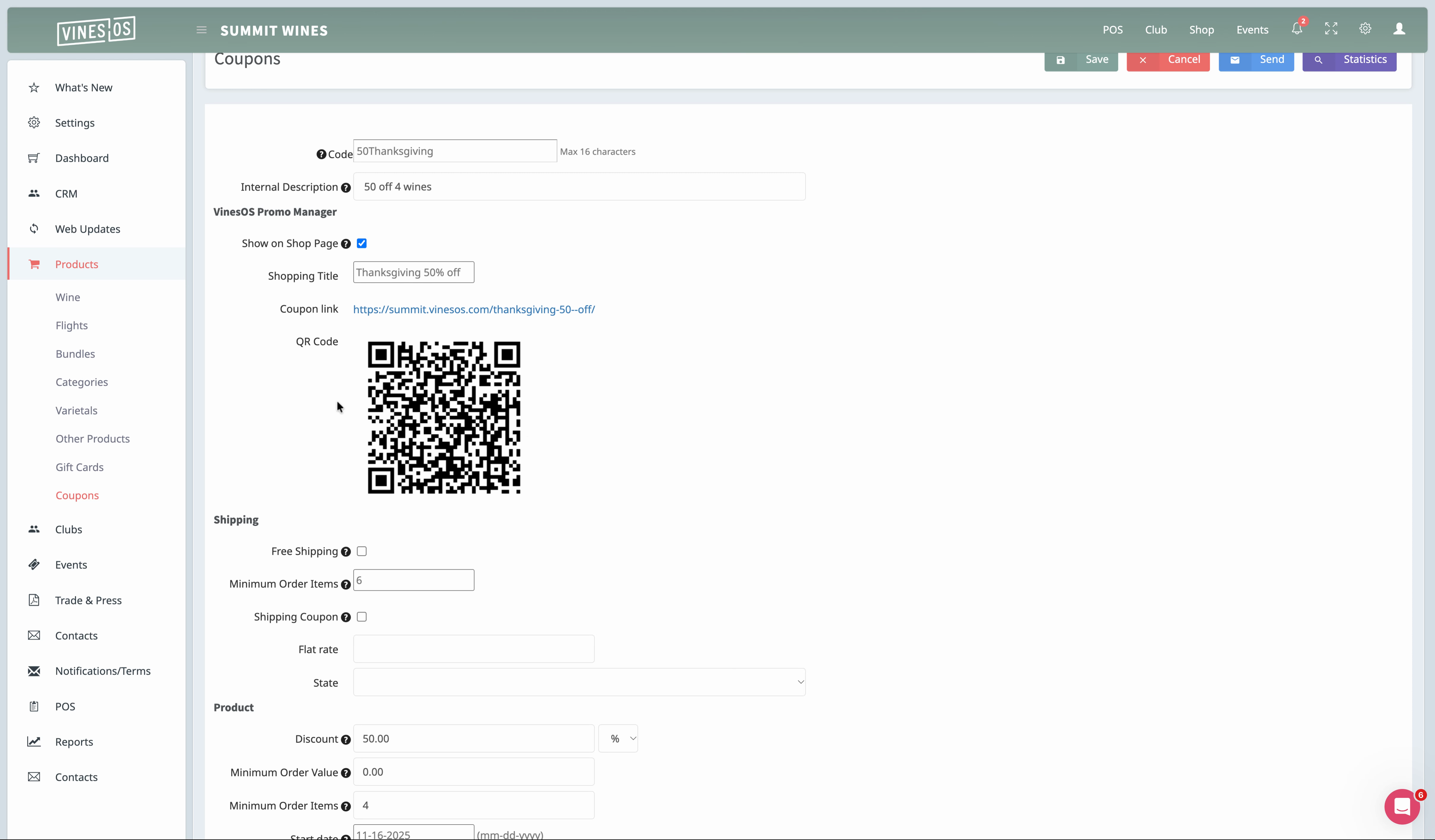
Step 3: Check the option to Show on shop page so shoppers see the deal front and center.
Step 4: Set the display title for your coupon—this is what will show up on the shop page.
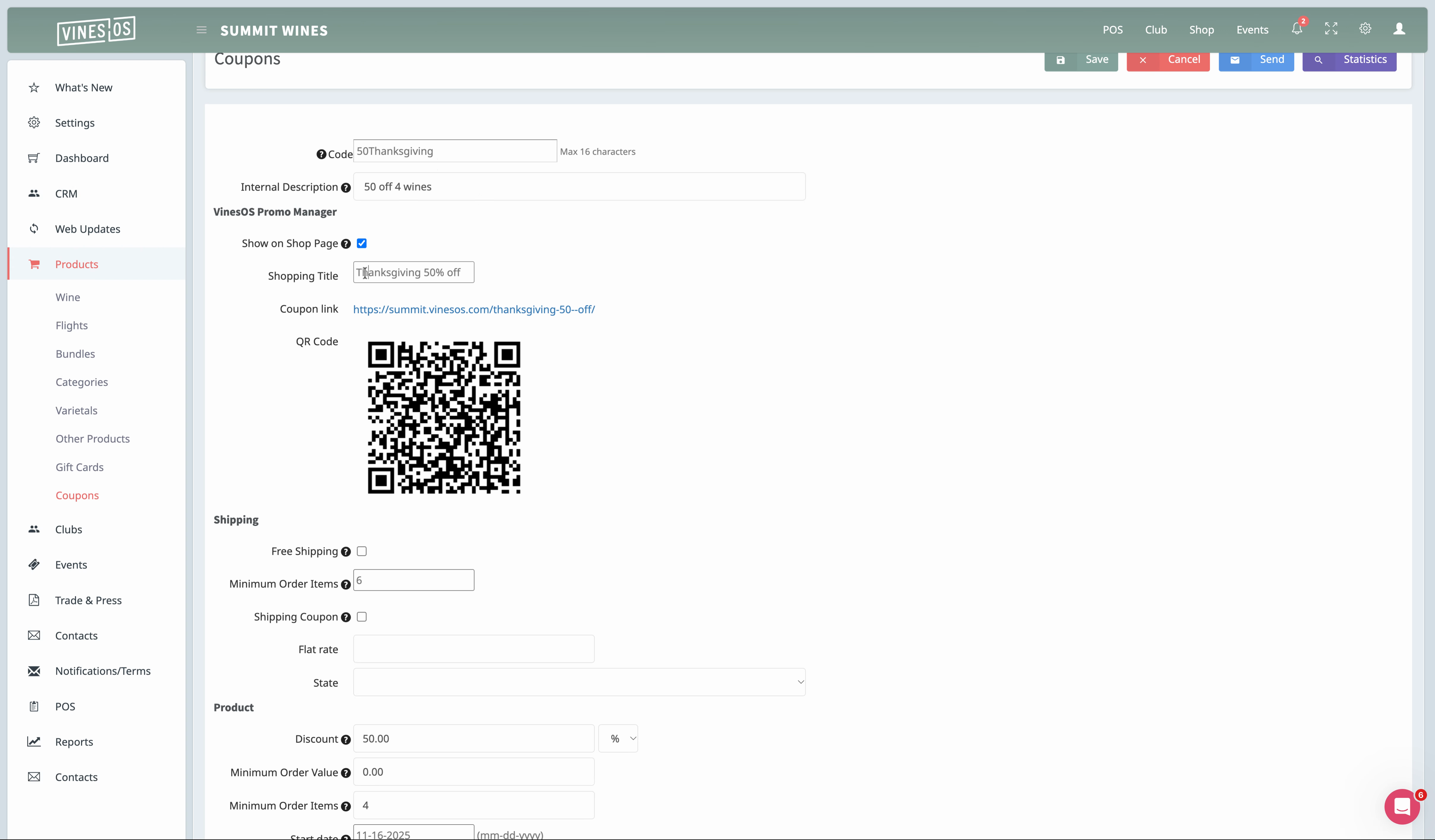
Step 5: Share the coupon link in your marketing campaigns. Anyone using the link will see eligible products and have the coupon auto-applied.
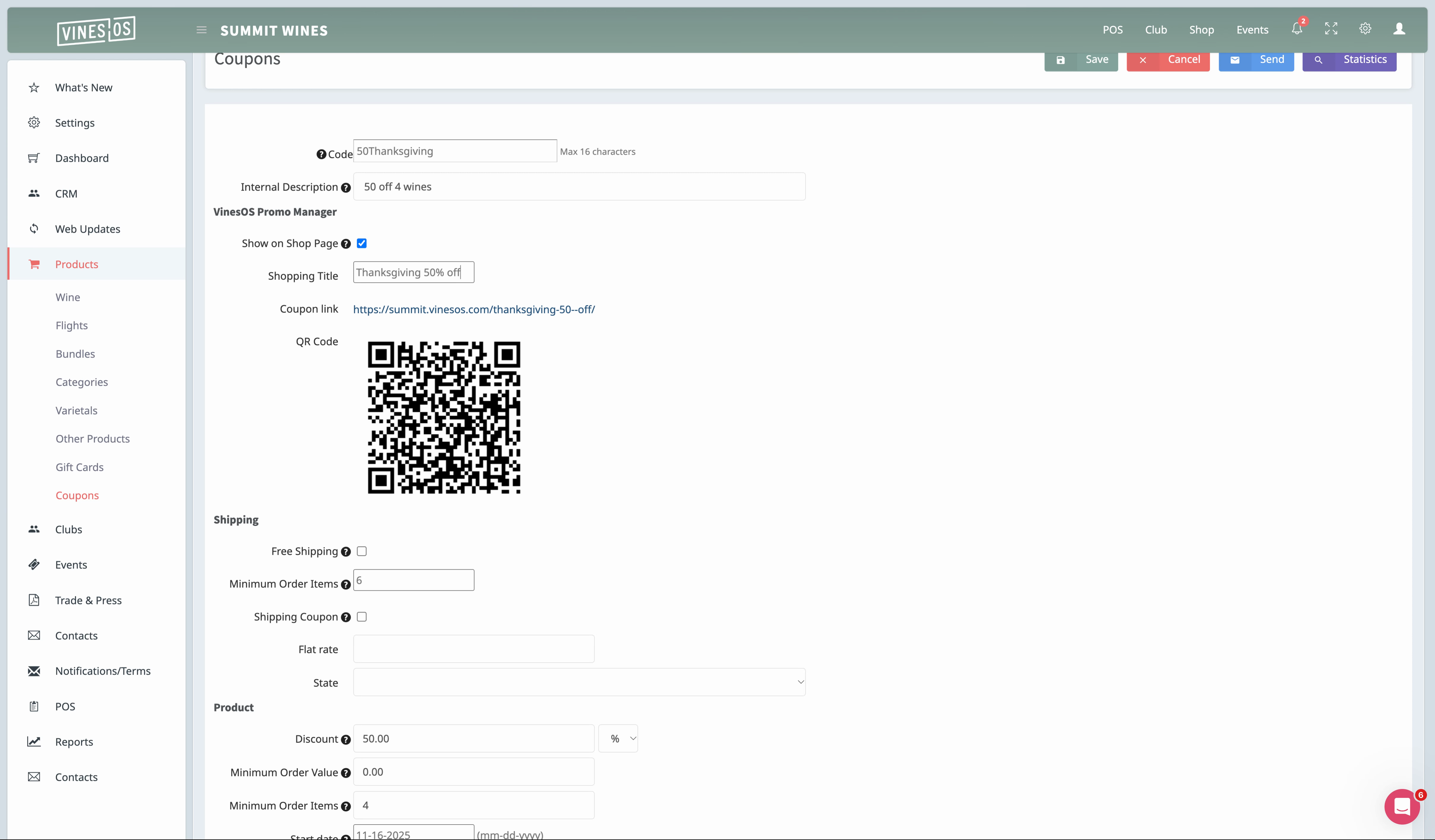
Step 6: Download or copy the QR code for offline marketing. When scanned, the coupon automatically adds to eligible orders.
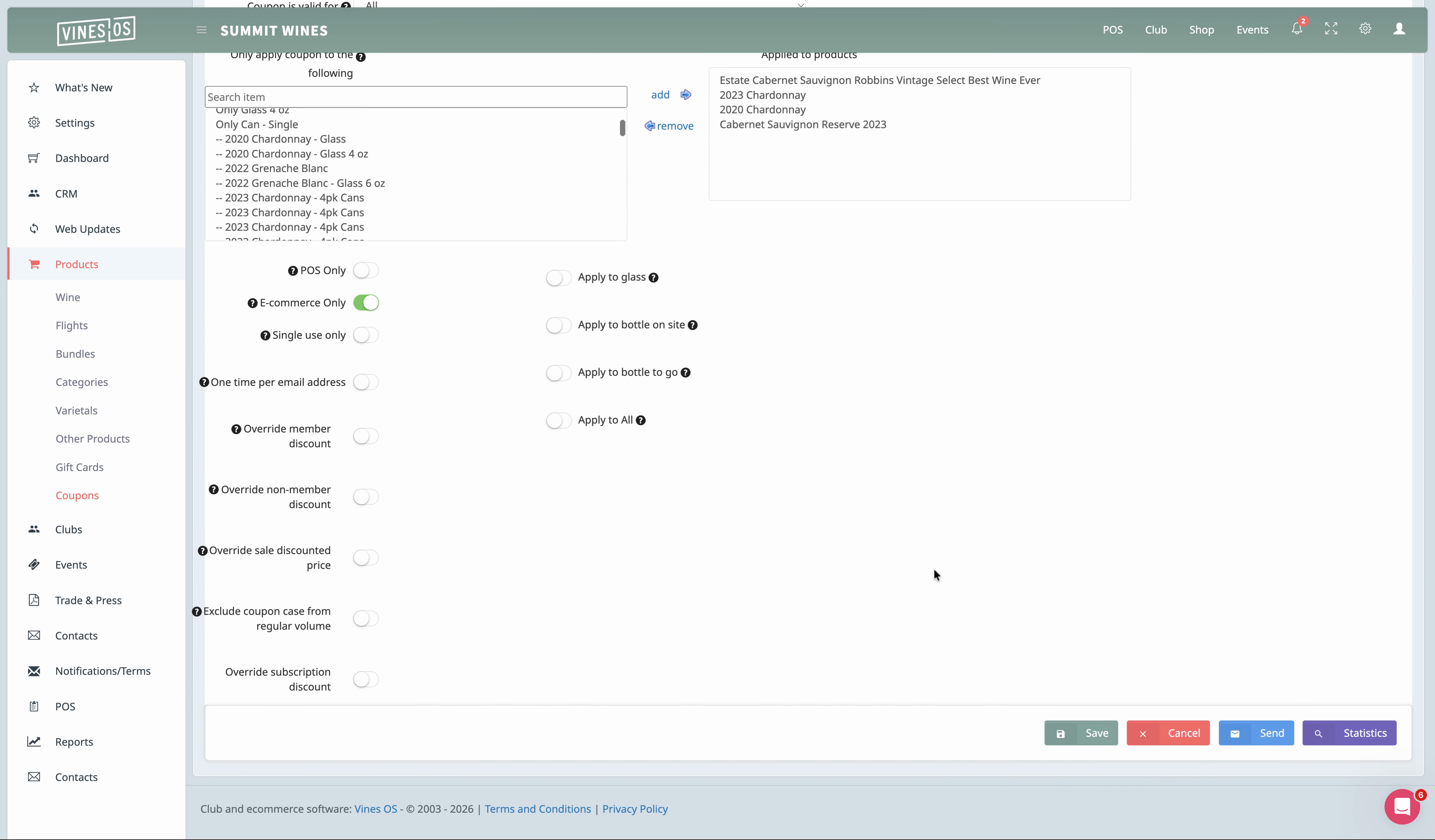
Step 7: In the search item area, choose the specific products this coupon applies to. Click Save.
That’s it! With your promotion live, shoppers will enjoy seamless savings, and you’ll drive more targeted sales—no code entry required!
Created on
Did you find this article helpful?